
Settings → Time & Attendance → Attendance & Geofence controls two separate questions: can employees clock themselves in at all, and does BeeHR check where they were when they did. Open it at Attendance & Geofence.
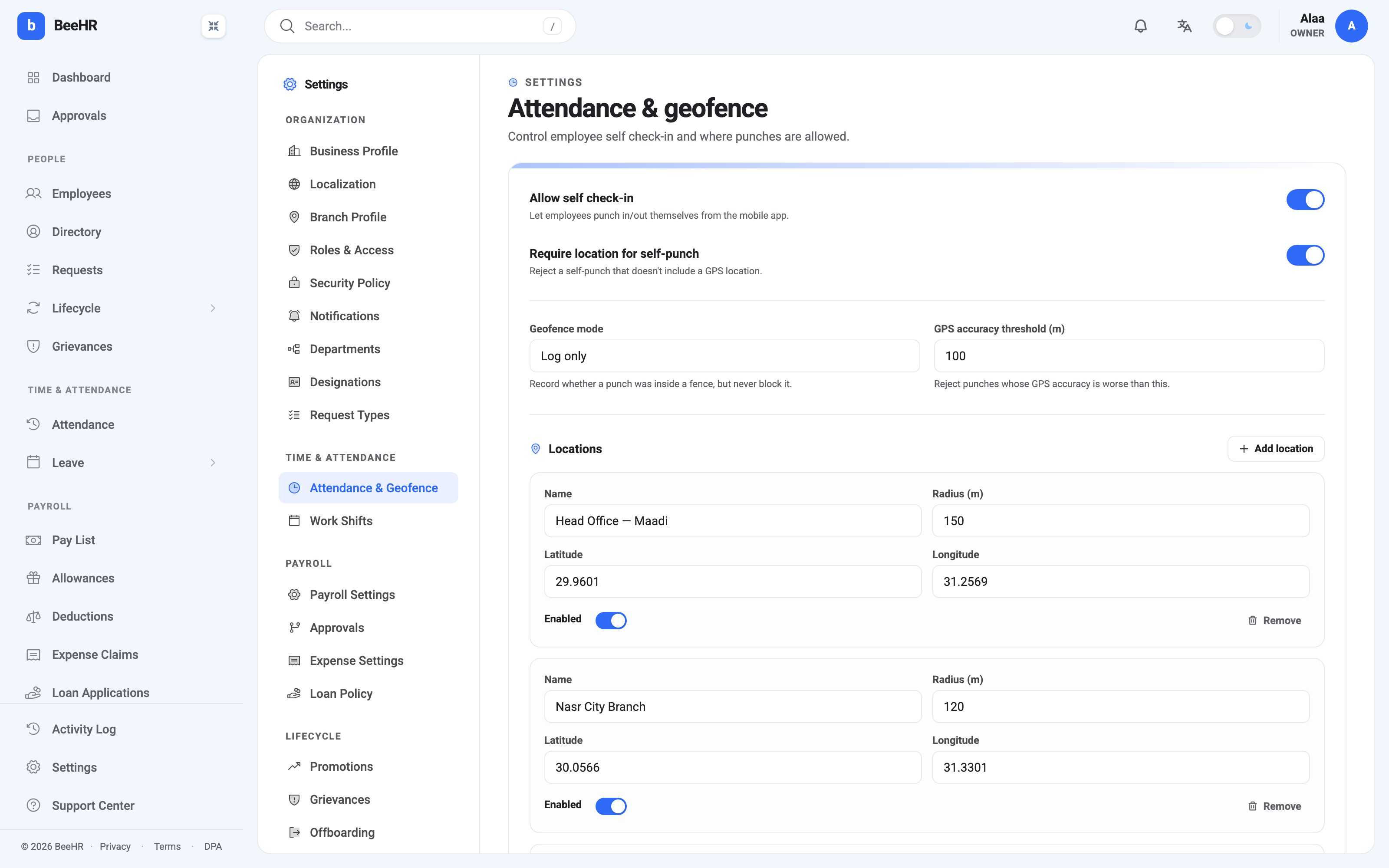
Allow self check-in
Turn this off and employees cannot punch in or out from the phone app at all — attendance becomes something HR records on their behalf. Turn it on and the clock-in button appears for everyone.
That’s the single biggest decision on this screen, and it’s independent of everything below it. A company with no geofence at all can still let staff clock themselves in; they just won’t have any record of where from.
The three geofence modes
Disabled — no location is captured. Punches carry a time and nothing else.
Log only — coordinates are captured and BeeHR records whether the punch was inside one of your fences, but a punch from outside is still accepted. This is the mode to start with, and for most companies it is the mode to stay on.
Enforced — a punch from outside every fence is rejected. Only this mode blocks anything.
The difference between the last two is worth thinking about before you switch. Enforced sounds like the stricter, more correct setting; in practice it means a salesperson at a client site, a driver mid-route or an engineer at a customer’s factory cannot clock in at all. Log only gives you exactly the same information without producing a support call every time somebody legitimately works somewhere else.
Start on Log only, look at what the outliers actually are, and only enforce if they turn out to be a real problem rather than the normal shape of the work.
Locations
Each location is a name, a latitude and longitude, and a radius in metres. Anywhere within that circle counts as inside the fence.
The radius wants more slack than you’d guess. GPS on a phone indoors is routinely tens of metres out, and a fence drawn tightly around a building will fail for someone standing in reception. The 150 metres on the head office above is a sensible starting point for a city-centre building; a warehouse with a yard and a car park wants considerably more.
The Enabled toggle on each location lets you keep a site defined without it counting — useful for an office that hasn’t opened yet, or one that’s closed for refurbishment.
Require location for self-punch
Separate from the modes above: turn this on and a punch that arrives with no coordinates at all is refused outright, regardless of geofence mode.
That’s aimed at the employee who has denied the app location permission. Without this, their punches simply arrive with nothing attached and quietly sit outside whatever reporting you’re doing. With it on, they get told at the moment they try, which is when they can do something about it.
GPS accuracy threshold
Phones report how confident they are in a fix. Anything worse than this figure is rejected as too vague to be worth recording — 100 metres is the default and a reasonable one.
Setting it too tight is a trap. A phone indoors, in a basement or in a dense city block regularly reports accuracy in the tens of metres, and a threshold of 20 would reject most real punches from inside a building.
Note — Location data is captured and stored per punch. Before turning any of this on, check what your local employment and privacy law requires you to tell staff — in many places tracking employee location needs disclosure and sometimes consent, and “the HR system does it automatically” is not a defence. That’s a conversation to have before the feature is switched on, not after somebody notices.