
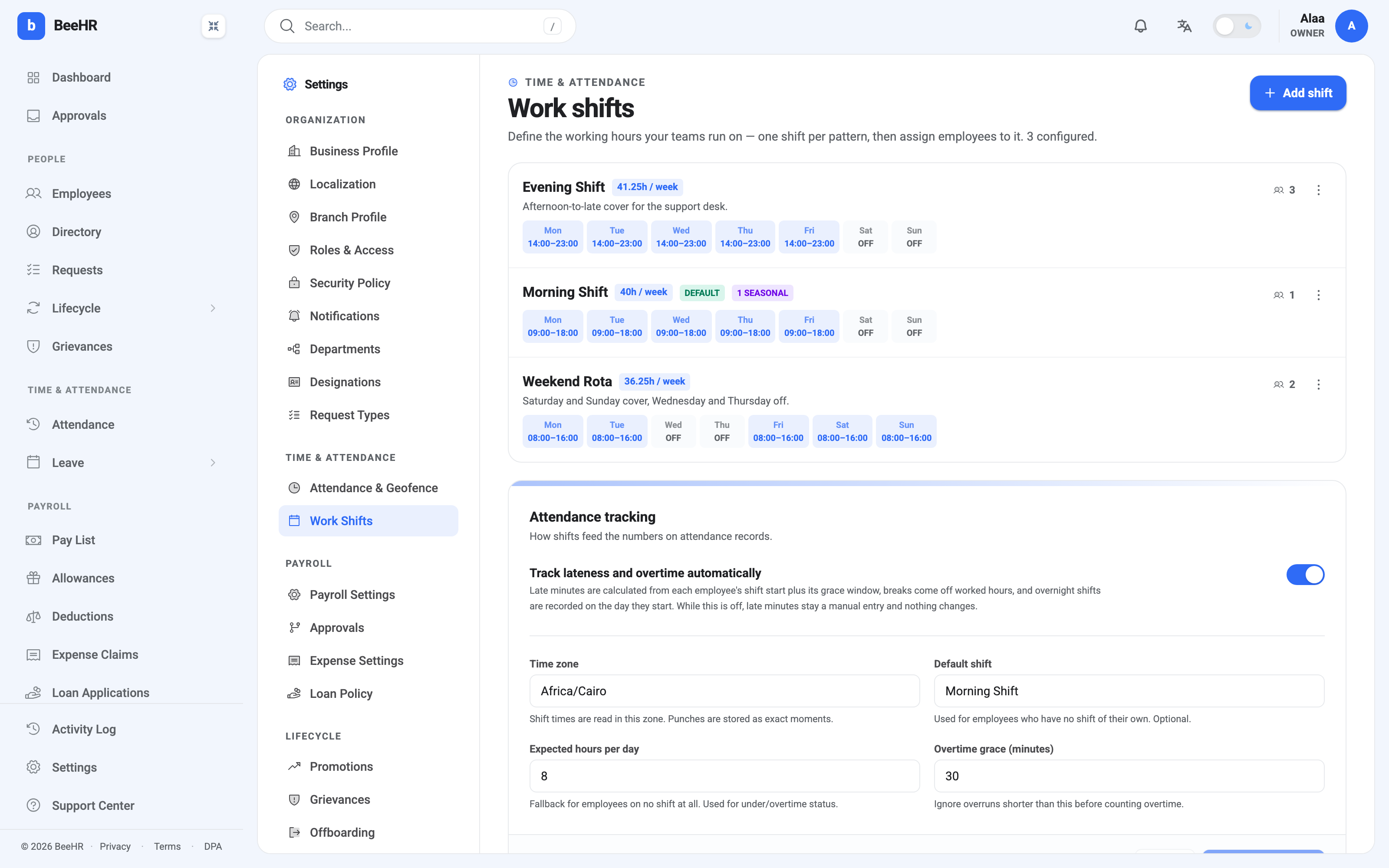
A shift is a seven-day pattern: for each day of the week, either working hours or nothing. That one idea explains most of this screen. Open it at Work Shifts.
The weekend belongs to the shift
There is no company-wide weekend setting in BeeHR. A day is off for somebody because the shift they’re on has nothing scheduled that day.
The Weekend Rota above makes the point: it works Friday through Tuesday and takes Wednesday and Thursday off, while the other two shifts run Monday to Friday. Both are correct at the same time, in the same company.
This has consequences well beyond this screen. When somebody books leave, the day count skips their non-working days, so the same Monday-to-Friday request costs a different number of days depending on the shift the person is on. It’s also why the attendance grid greys out different cells for different people.
Reading a shift
Weekly hours is calculated, not typed. BeeHR adds up the scheduled hours, subtracts the breaks, and shows the total — which is why Evening Shift reads 41.25 rather than a round number.
DEFAULT marks the shift used for anybody who hasn’t been given one of their own. 1 SEASONAL means the shift carries one seasonal override.
The count on the right is how many people are currently on that shift.
What each day holds
Open a shift and each working day has four values:
- Start and End — the scheduled window.
- Break (minutes) — deducted from worked hours. An unpaid lunch goes here.
- Grace (minutes) — how late somebody can arrive before it counts as late. Fifteen minutes is a common setting; the Evening Shift above uses ten.
Days can differ from each other within one shift. A Friday that finishes early is just a different end time on that one day, not a separate shift.
Setting a day to OFF is what makes it a non-working day. There’s no separate “weekend” checkbox — an empty day is the weekend.
Seasonal overrides
An override is a date range with its own week that replaces the normal pattern while it’s active. Ramadan is the reason this exists: working hours shorten for a month and then go back to what they were.
Give it a name, a from and to date, and the seven-day pattern to use in between. BeeHR applies it automatically for those dates and reverts on its own afterwards — there is nothing to remember to switch back, which is the whole point.
Use one for anything cyclical: summer hours, a seasonal shutdown, a reduced-hours period over a holiday season. Don’t use one for a permanent change; that’s just editing the shift.
Attendance tracking
Below the shifts sits the setting that decides whether any of this affects recorded attendance.
Track lateness and overtime automatically is the switch. With it on, late minutes are worked out from each employee’s shift start plus its grace window, breaks come off worked hours, and an overnight shift is recorded against the day it started. With it off, none of that is calculated and late minutes stay whatever somebody typed in by hand.
Four values support it:
- Time zone — the zone shift times are read in. Punches themselves are stored as exact moments, so this only affects how a 09:00 start is interpreted. Get it right before the numbers mean anything.
- Default shift — used for anyone without their own.
- Expected hours per day — the fallback for someone on no shift at all, used to decide whether a day ran under or over.
- Overtime grace (minutes) — overruns shorter than this don’t count as overtime. Thirty minutes stops every person who stayed to finish an email from accruing time.
Assigning shifts to people, and what these numbers do once you have, is covered in Assigning Shifts, Lateness and Overtime.