
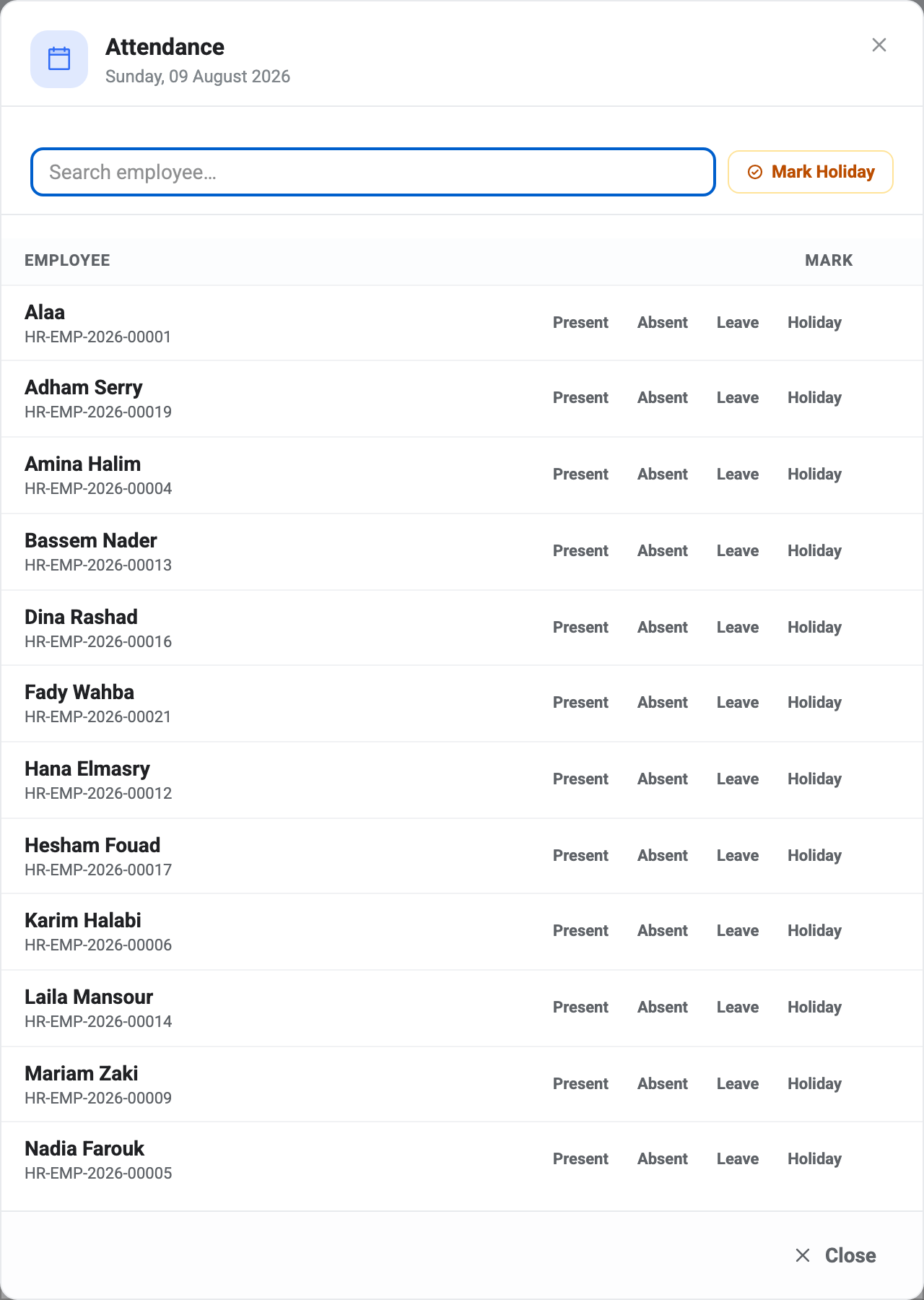
Click any cell in the attendance grid and a panel opens for that date.
It opens the day, not the person
This is the thing to get used to. You clicked one cell, but you get the whole roster for that date — the person you clicked is simply hoisted to the first row so you don’t have to hunt for them.
It reads as a mistake and it isn’t. Attendance corrections almost always arrive day-shaped: the power was out on Tuesday, half the team was at an offsite on the 14th, the clock terminal was down all morning. Fixing those one employee at a time would mean reopening the same day fifteen times.
For a single person, the search box at the top narrows the list to them in one keystroke.
Setting a state
Each row has four buttons: Present, Absent, Leave and Holiday. Clicking one records that state for that person on that date, immediately — there is no save button, and no confirmation.
Clicking the state somebody is already on clears it, returning the day to having no record at all. That’s the difference between a dash and an A on the grid, and it matters: a dash means BeeHR has nothing recorded, while Absent is a positive claim that somebody should have been there and wasn’t. Only Absent feeds a deduction.
So if you set someone Absent by mistake, click Absent again rather than picking a different state.
What this panel doesn’t do
There are no check-in and check-out time fields here, and nowhere to leave a note. This screen sets the day’s state and nothing else.
That is worth knowing before you go looking for them. If somebody’s recorded hours are wrong rather than their status, this isn’t the screen that fixes it.
Mark Holiday
The amber Mark Holiday button at the top applies Holiday to every active employee for that date in one go. It’s the intended way to reflect a company closure in attendance.
Two things to remember:
- Adding a date to the holiday calendar does not do this. The calendar is the plan; this is the record. Marking the day here is what keeps a closure out of everyone’s absence figures.
- It’s a bulk write. Check you have the right date in the panel header before pressing it — the header states the day in full, Sunday, 09 August 2026, precisely so you can.
When to correct, and when not to
Fix a day when the record is wrong: a missed punch, a terminal outage, someone marked Absent who was actually at a client site.
Do the corrections before running absence deductions for the month, not after. That job reads the grid at the moment you press it and turns Absent days into money. Once it has run, fixing the grid doesn’t unwind the deduction it already wrote.
One thing corrections can’t do is stand in for leave. Marking somebody’s days as Leave here records that they were off; it does not create a leave request, consume any allowance, or appear in the leave reports. Those are separate records — see How Leave Works.