
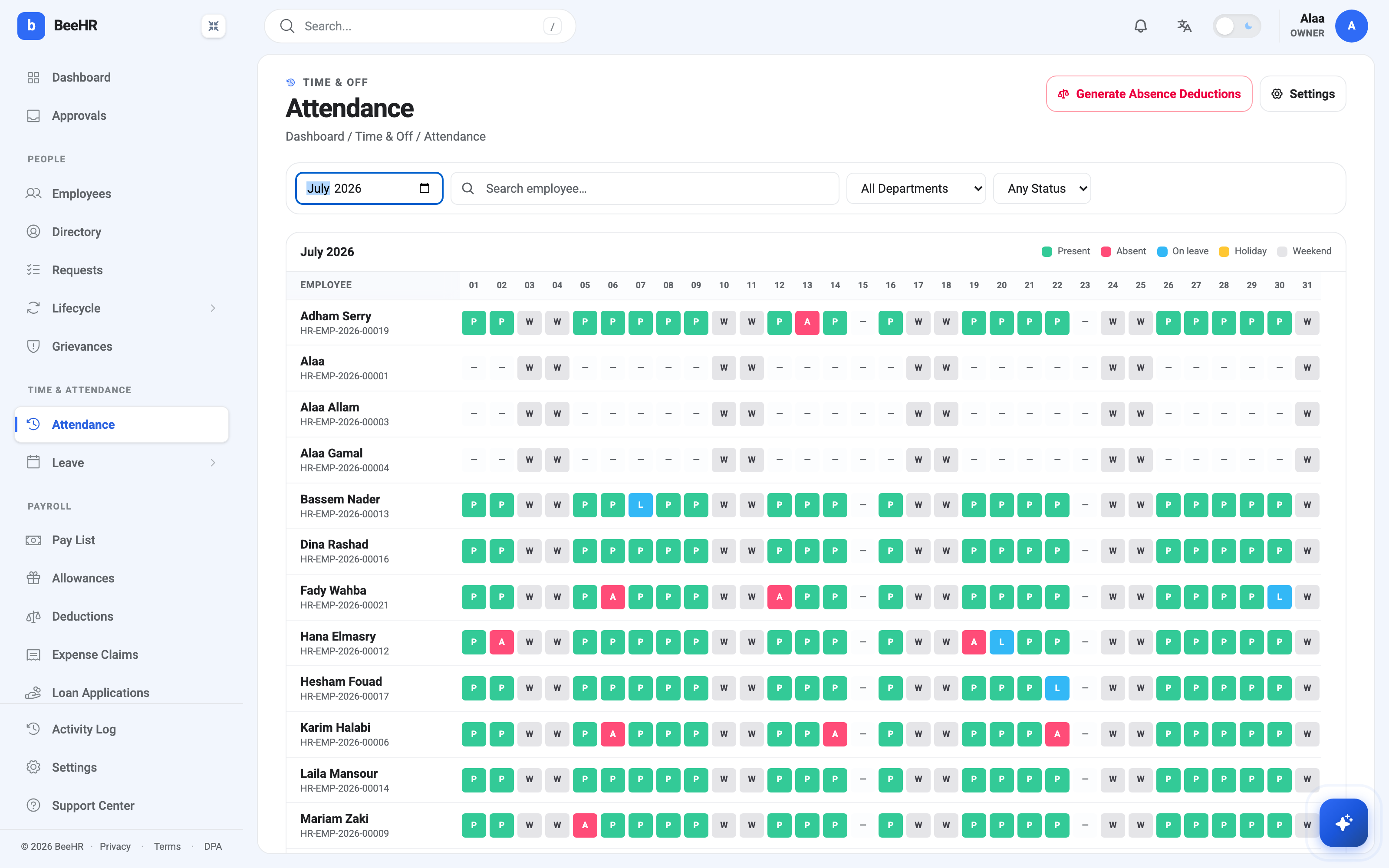
The grid is the whole month at a glance: every employee down the side, every day across the top. Open it from Time & Attendance → Attendance, or go to Attendance.
Reading a cell
The legend sits above the grid, and there are five states:
- P — Present, green. Somebody was at work.
- A — Absent, red. They were expected and did not come in, with no approved leave covering it.
- L — On leave, blue. Recorded as a day off. Note that this is a state somebody set on the grid, not something an approved leave request produces on its own — see below.
- W — Weekend, grey. Not a working day.
- Holiday, amber. A company closure.
A dash means no record at all — nothing was logged for that person on that day. That is different from Absent, and worth being careful about. Absent is a statement that somebody should have been there; a dash is BeeHR admitting it doesn’t know. Only Absent feeds a deduction.
You will see whole rows of dashes for anyone who joined mid-month, or who has never had attendance recorded. That is normal and not an error.
The month picker and filters
The date box in the top-left controls which month you are looking at, and it opens on the current one. Search employee narrows the rows, and the Department and Status dropdowns filter to a team or to everyone sharing a single state — the fastest way to answer “who was absent this month?” is to set Status to Absent and read what’s left.
Approved leave doesn’t appear on its own either
An approved leave request updates the employee’s balance and the leave reports. It does not write anything into this grid. Somebody who is away on approved leave shows as a dash here until the day is set to On leave, which is done by clicking the cell.
That is worth knowing before you read a row and conclude somebody has been absent all week. The grid records what was logged; the leave requests list records what was agreed. Checking one against the other is a real part of month-end.
Holidays don’t appear on their own
This is the one that surprises people. Adding a day to the holiday calendar records that the company is closed, but it does not paint that day amber here. In the screenshot above, the 15th and the 23rd of July are both company holidays, and both show as dashes.
To reflect a closure in attendance you mark the day on the grid itself. That writes a Holiday record against every active employee for that date — which is what makes it show up in reports and keeps it out of the absence figures. It is a deliberate two-step: the calendar is a plan, the grid is the record of what actually happened.
Correcting a day
Click any cell and BeeHR opens that whole day, for everyone — not just the person whose cell you clicked, though they are moved to the top of the list so you can find them. From there each person can be set to Present, Absent, Leave or Holiday.
It catches people out the first time, but it is the right shape for the job: corrections usually come in day-sized batches. See Correcting Attendance for a Day.
Generating absence deductions
Generate Absence Deductions takes the Absent days in the month you’re viewing and turns them into payroll deductions, using the divisor set in Payroll Settings.
It is deliberately styled as a destructive-looking button because it writes real money into people’s pay. Get the grid right first — fix the dashes that should be Absent, mark the holidays, make sure approved leave shows as L — and run it once you are happy. It reads what the grid says at the moment you press it.