
Approvals is the second item in the sidebar, above everything else for a reason: it’s the one screen with work waiting in it.
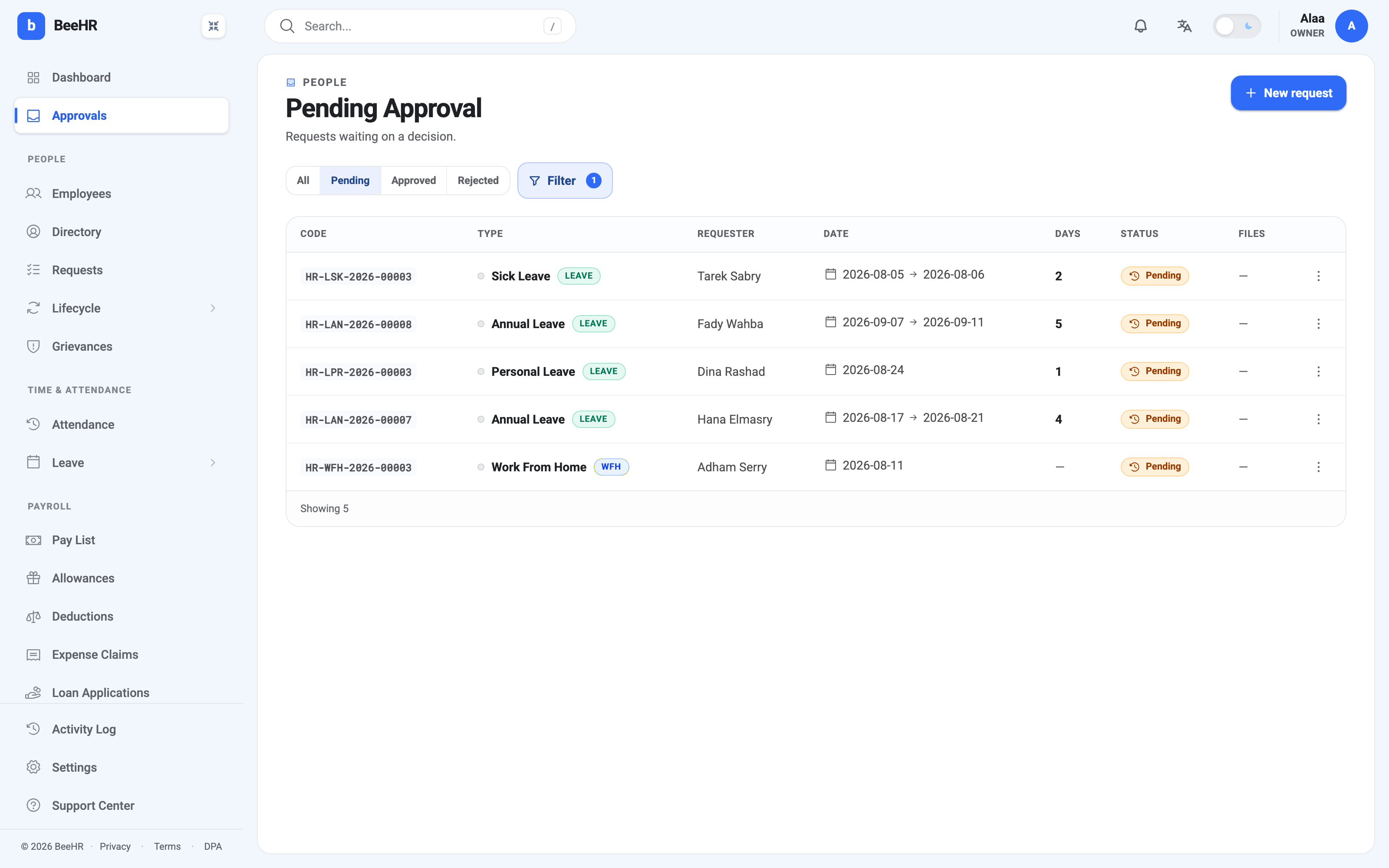
It is not a separate feature — it is the requests list with the status filter preset to Pending. The 1 on the Filter button is that preset counting itself, which is a useful reminder that you’re looking at a filtered view rather than everything.
Working the queue
Read across a row and you usually have enough to decide without opening anything: who is asking, what for, which dates, how many workdays it costs, and whether anything is attached.
The ⋮ at the end of a Pending row gives you Approve and Reject directly, so a clear-cut request never needs a page load. Open the row itself when you want the reason in full, the attachments, or the balance the person had when they submitted.
Clearing the queue to zero is the goal. Anything left sitting will eventually be rejected automatically, which is a worse outcome for everyone than a decision either way.
Two badges that change the decision
Most rows carry just a status badge. Two others appear when something needs your attention, and both are worth stopping for:
Over quota means the request is for more days than the person had left when they submitted it. BeeHR does not block it — an employee can ask for more than their allowance, and sometimes the answer is yes. The badge exists so you never approve one without realising. It shows how far over when it can work it out.
No approver means the automatic routing found nobody. It happens when the person who filed the request is also the only person who could have approved it. The request is genuinely stuck until somebody with org-wide approval rights handles it, and the badge is there so it doesn’t look like an ordinary pending item quietly aging toward its deadline.
Narrowing it down
The Filter panel adds category and employee on top of status. Filtering to one person is the quickest way to answer “how much has this team already got booked?” before you approve one more.
The status tabs across the top switch you between All, Pending, Approved and Rejected without touching the panel. Landing on Approved or Rejected is how you check what you decided last month, which is also where a request goes when you are looking for one that has vanished from this queue.
If a decision doesn’t stick
Occasionally you’ll approve something and get told the request was already actioned. That means somebody else decided it between the page loading and you clicking — a second manager working the same queue, most often. Refresh and look again; the decision that landed first is the one that counts.