
Anything an employee formally asks the company for is a request. Time off is a request. Working from home is a request. So is unpaid leave and whatever else you decide to add. They all run through one screen, one lifecycle and one set of rules, which is why learning it once is enough.
The three states
A request is Pending, Approved or Rejected. There is nothing else — no draft, no partially-approved, no multi-step chain to track.
Everything starts Pending. Someone with authority over it approves or rejects it, and that is normally the end. An Admin can revert a decision back to Pending if it needs redoing, which is the only way out of a final state.
Two things can end a request without anybody clicking. If nobody acts on it before its deadline, BeeHR rejects it automatically overnight — covered in Deadlines and Automatic Rejection. And while a request is still Pending it can be deleted outright, which leaves no record at all.
Reading a code
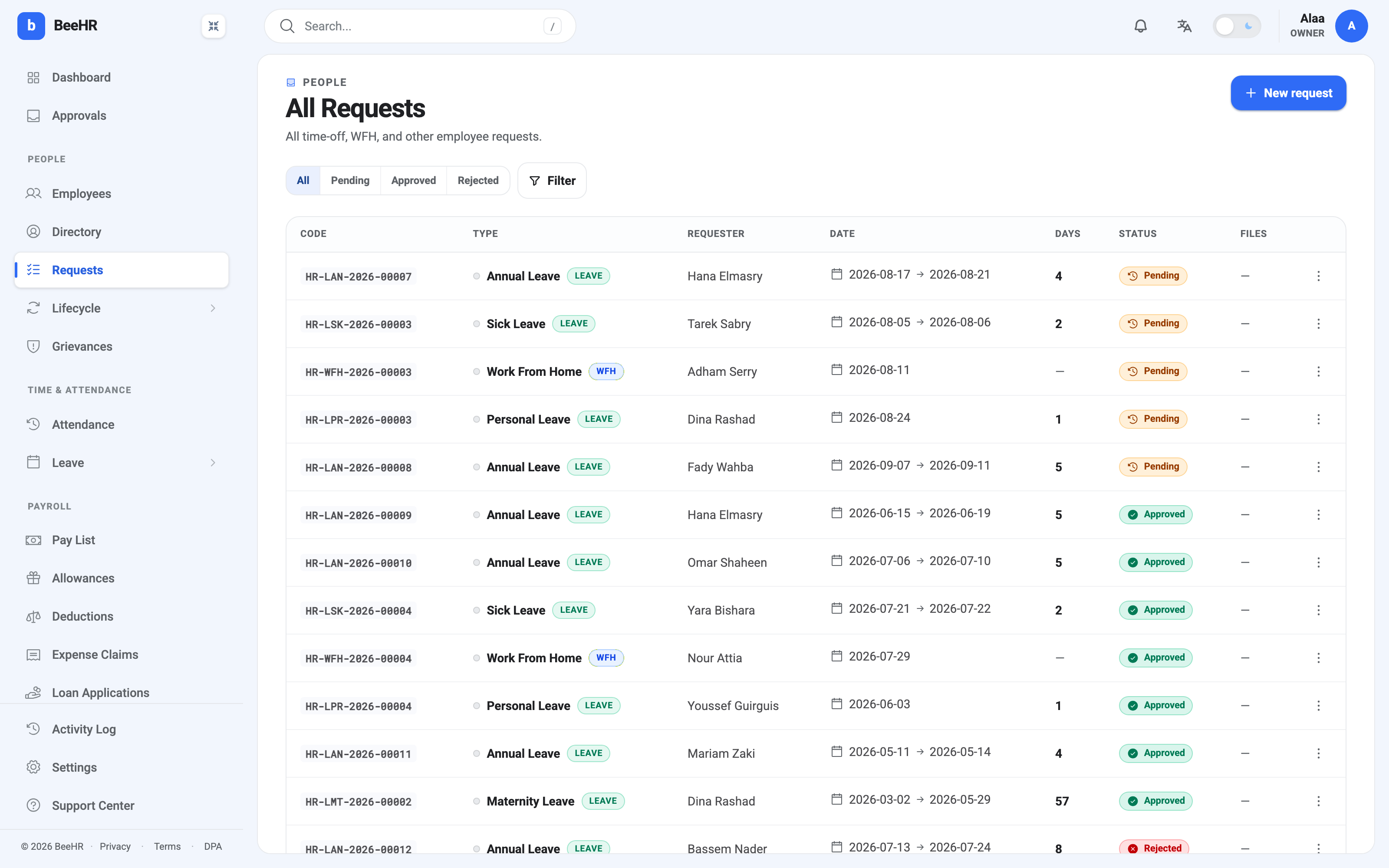
Every request gets a code the moment it is submitted: HR-LAN-2026-00007.
The middle three letters are the interesting part — they come from the request
type, so LAN is Annual Leave, LSK is Sick Leave, WFH is Work From
Home. Each type numbers its own sequence separately, which is why you’ll see an
HR-LAN-2026-00007 and an HR-WFH-2026-00003 created on the same afternoon.
The code never changes and is the thing to quote in an email or a support ticket.
Category decides how a request behaves
Each type belongs to a category, shown as a badge next to the name:
- Leave — counts days, checks a balance, and shows up in leave reports.
- WFH — a single date, no day count, no balance.
- Other — anything else you set up.
That’s why a Work From Home row shows one date and a dash under Days, while an Annual Leave row shows a range and a number. It isn’t missing data; day counting is a leave thing.
The day count is smaller than the calendar
For leave, BeeHR works out workdays, not calendar days. It excludes your branch’s weekend, and it excludes public holidays in your branch’s country.
So a request from Monday 17 August to Friday 21 August 2026 comes back as 4 days, not 5, because 20 August is a public holiday. The employee gets the day back without asking, and the approver sees the real number before deciding.
This is worth knowing when somebody queries their balance: the figure deducted is the workday count, and it depends on the holiday calendar being right.
Who approves it
When a request is submitted, BeeHR picks the approver:
- The requester’s reporting manager, if they have one.
- Failing that, an Admin.
- Never the requester themselves.
That last rule matters more than it sounds. Nobody approves their own time off, even an owner. If the chain resolves to nobody — a small company where the person filing is the only admin — the request gets a No approver badge so it doesn’t sit in the queue looking ordinary while being quietly unactionable. Somebody with org-wide approval rights has to step in.
An approver can also be chosen explicitly when the request is filed, which overrides the automatic pick.
Finding requests
Three views cover most of what you need:
- Requests — everything, in every state.
- Approvals — only what is waiting on a decision. See The Approvals Inbox.
- Leave Requests, under Leave in the sidebar — the same table filtered to leave types only.
They’re the same table with different filters applied, so anything you learn about one applies to the others.
Where to go next
- Submitting a Request — filing one, including on somebody else’s behalf.
- Approving, Rejecting and Reverting — making and undoing decisions, and what each does to a balance.
- Request Types — deciding what your employees can ask for in the first place.