
New request sits in the top-right of Requests and Approvals alike. It opens one panel that covers every kind of request.
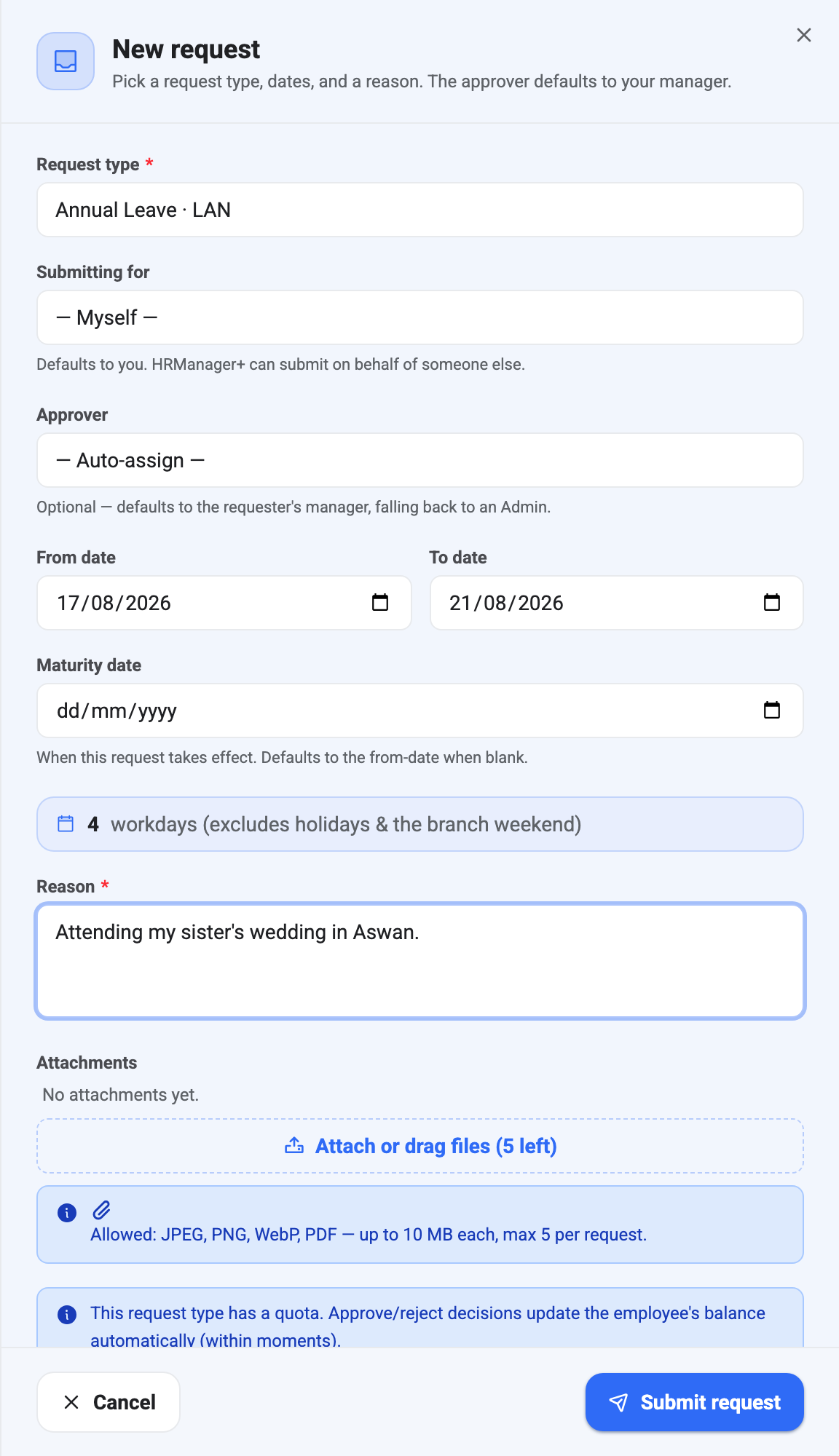
Pick the type first
The panel changes shape depending on what you choose, so start there. A leave type asks for a date range and shows a day count; Work From Home asks for a single date; a type with a deadline adds a Maturity date field that others don’t have.
The list comes from Request Types. If what you need isn’t there, it hasn’t been set up yet.
Submitting for somebody else
Submitting for defaults to Myself. If you have the permission to file on others’ behalf, the dropdown lets you pick anyone on the roster — for the person who phoned in sick, or the colleague who doesn’t have the app yet.
The request is recorded as theirs, not yours: it counts against their balance, routes to their approver, and appears under their name in every report. You are just the person who typed it.
Approver
Auto-assign is right nearly always. It routes to the requester’s reporting manager, falling back to an Admin if they don’t have one, and it will never route a request back to the person who filed it.
Choosing a specific approver overrides that. It’s for the genuine exception — the manager is away, someone else is covering — rather than something to set routinely. Routing around the org chart makes requests harder to trace later.
Dates, and the number underneath them
For leave, filling in both dates makes a blue strip appear:
4 workdays (excludes holidays & the branch weekend)
That number, not the span of the calendar, is what gets deducted. In the screenshot above, 17–21 August looks like five days; 20 August 2026 is the Islamic New Year, so it costs four.
Check it before you submit. If it reads higher than you expected, the holiday calendar may be missing a day, or the branch weekend may be set to something other than what your office actually works.
Maturity date appears only on types that carry a deadline, and it can be left blank — it defaults to the from-date. It’s the date the request stops being actionable, so Deadlines and Automatic Rejection is worth a read before you set one by hand.
Reason is required
Every request needs one, and it should be a sentence, not a word. The approver sees it before deciding, and it’s what makes the difference between approving from the queue and having to go and ask.
“Attending my sister’s wedding in Aswan” gets a decision. “Personal” gets a conversation.
Over quota isn’t a wall
If you’re asking for more leave than the balance allows, BeeHR still accepts the request — it flags it as Over quota for the approver instead. That’s deliberate: whether to allow it is a management decision, not a validation rule. The panel also tells you when the type has a quota at all, and that approving or rejecting updates the balance automatically.
After submitting
The request appears immediately with a Pending badge and its own code, and the approver has it in their queue. Until somebody acts on it you can still delete it; once it’s approved or rejected, only an Admin can reopen it.
Files can be attached at this point or afterwards — see Attaching Files to a Request.