
Three actions, in the order you’ll need them. How Promotions Work covers what a promotion is; this is how to drive one.
Raising one
New Promotion at the top of Lifecycle → Promotions opens the sheet.
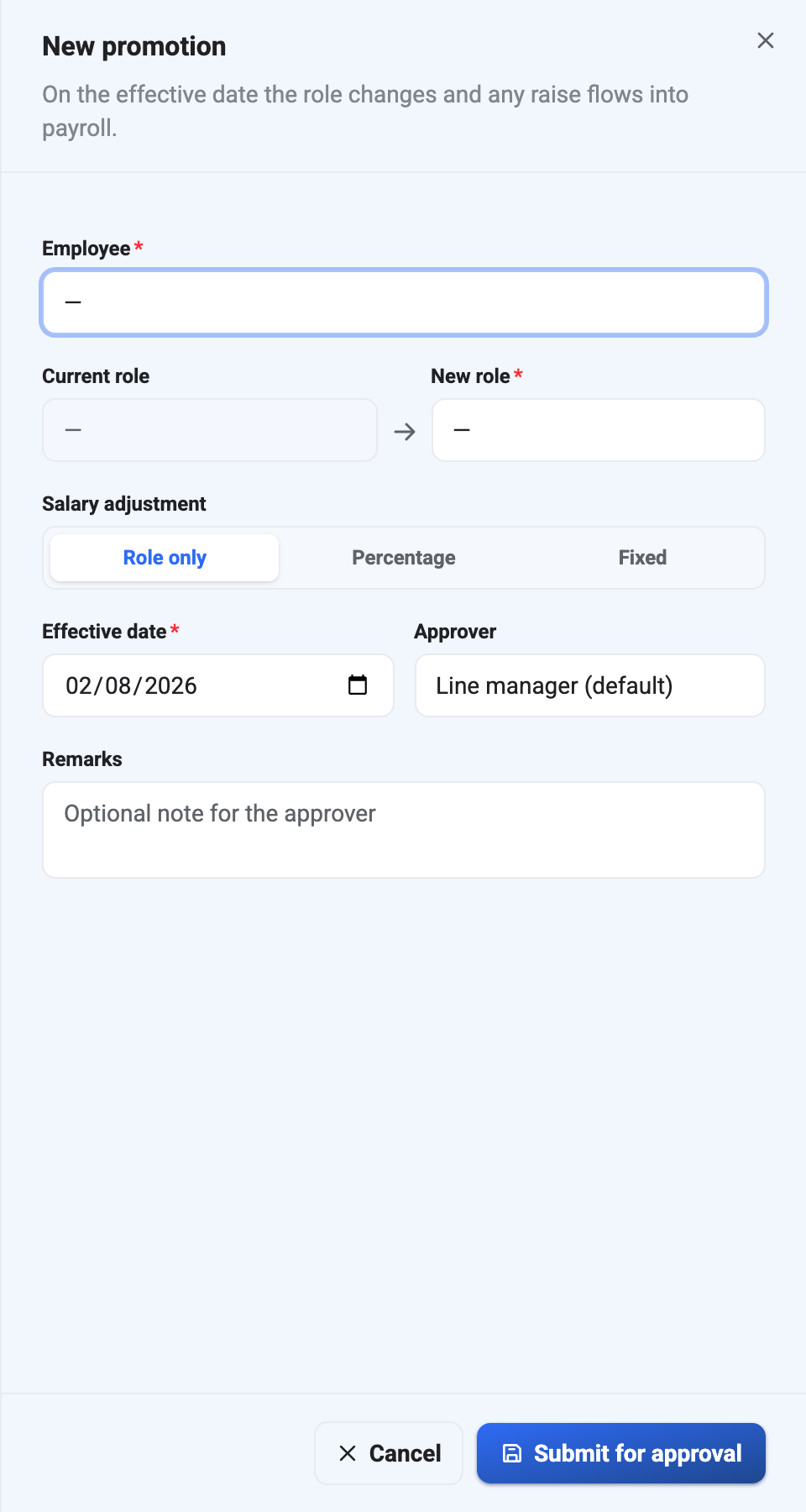
Employee first — Current role fills itself in from their record, read-only, so the sheet shows the move as a before-and-after rather than asking you to remember it.
New role comes from the designations catalogue. If the title you want isn’t there, add it there first; you can’t type a free-text role here, and that’s deliberate — a promotion into a title nothing else recognises would break every report that groups by designation.
Salary adjustment offers three choices, and the first is the one people miss:
- Role only — a title change with no money attached. A legitimate and common outcome, not a placeholder.
- Percentage — a proportional raise, the usual choice.
- Fixed — a flat amount, useful when the raise was negotiated as a number rather than a percentage.
Effective date defaults to today and can be set forward. Forward-dating is the normal case: agree it now, let it land at the start of the month or quarter.
Approver defaults to Line manager, resolved from the employee’s reporting manager. Override it when the line manager is the one raising the promotion, or when they’re the subject of it.
Remarks is an optional note for the approver. It’s the field that decides whether the person deciding has to come and ask you what this is about — the seeded examples read like sentences somebody would actually write: “Took over the meal-programme rollout and has been running the team since March.”
Submit for approval — not “Save”. The wording is accurate: raising a promotion starts a decision, it doesn’t make one. Nobody can raise a pre-approved promotion, including for themselves.
Deciding on one
A Pending row is the only one with actions, and it carries four:
| Icon | Action |
|---|---|
| ✓ | Approve — agree to it |
| ⊗ | Reject — decline it, with a reason |
| ✎ | Edit — change the terms while it’s still pending |
| ⊘ | Cancel — withdraw it |
Approve and Reject both take remarks. On a rejection that text is the record of why, and it stays on the row permanently — a rejected promotion isn’t deleted, because the fact that it was proposed and declined is part of somebody’s history.
Edit is the underused one. If the terms are nearly right — wrong effective date, raise a percentage point off — editing while Pending is cleaner than rejecting and re-raising, and it keeps the conversation on one record.
Cancel withdraws a promotion that shouldn’t have been raised at all. Use it for mistakes; use Reject for decisions.
Approving needs a different permission from raising, which is the point of the module. See Roles and Access.
The gap between approved and applied
Approving agrees to a promotion. It does not change the employee’s designation. That happens on the effective date, applied by a scheduled process — exactly what the sheet’s subtitle promises.
So between approval and the effective date, a promotion is in a state where:
- The employee’s record still shows the old designation. Correct, not a bug.
- The salary adjustment hasn’t reached payroll yet either.
- Revert is refused. BeeHR says so plainly: only an applied (Approved) promotion can be reverted.
If an approved-but-not-yet-applied promotion needs undoing, revert is the wrong tool and won’t work. Cancel it instead, before the date arrives.
Reverting
Once a promotion has been applied, Revert undoes it: the designation goes back, and the salary adjustment is unwound.
Reverting takes its own mandatory remarks field, separate from the one on approval, and the reason is worth writing properly. A revert is a visible event on somebody’s record — it says a promotion happened and was taken back — and six months later the note is the only thing standing between that record and an uncomfortable guess.
Two things to know about it:
It is not the same as a demotion. A revert says the promotion shouldn’t have been applied. Moving somebody down a level deliberately is a promotion in the other direction, with its own approval.
The window opens on the effective date, not on approval. A promotion agreed in July with a September date can’t be reverted until September. Before then, cancel.
Choosing between the four
The question that settles it is what stage is it at, and what are you saying?
| Situation | Use |
|---|---|
| Terms are nearly right, still pending | Edit |
| Decided against it, still pending | Reject |
| Shouldn’t have been raised at all | Cancel |
| Approved but not yet applied, no longer wanted | Cancel |
| Already applied, and wrong | Revert |