
Two things decide what somebody can do in BeeHR, and mixing them up is the source of most access confusion:
A permission is what — view employees, approve requests, run payroll.
A data scope is whose — themselves, their direct reports, their branch, or everybody.
They multiply. View employees with a scope of Direct reports is a team lead who can open their own people and nobody else. The identical permission with a scope of All employees is an HR administrator who can open anyone. Same tick, completely different job.
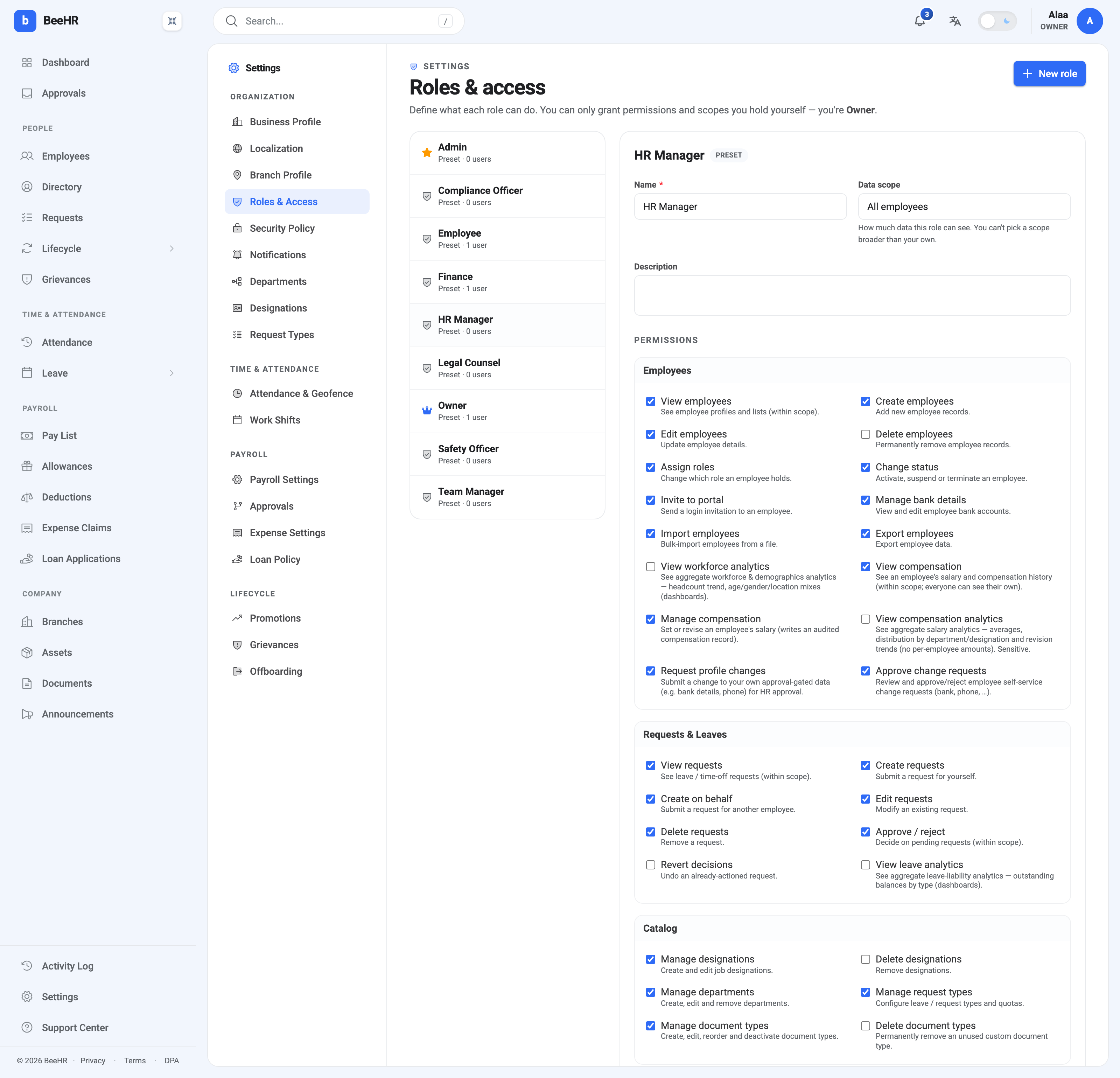
A role bundles a set of permissions with one scope, and gets assigned to people. They’re built at Settings → Roles & Access.
The four scopes
| Scope | Sees |
|---|---|
| Only themselves | Their own record and nothing else |
| Direct reports | The people who report to them |
| Their branch | Everybody at their location |
| All employees | The whole company |
Scope belongs to the role, not to the person, and it applies to every permission in that role at once. You can’t build a role that sees payroll for the whole company but attendance for one branch — that would be two roles.
Direct reports resolves against the reporting manager on each employee’s record. If that field is empty, a manager’s scope is empty too, and they will see an oddly bare screen. It’s the most common cause of “why can’t my team lead see anything”.
The nine presets
BeeHR ships nine roles, and they cover most companies without modification:
Owner — everything, permanently. Admin — everything, editable. HR Manager — the day-to-day HR job. Team Manager — a lead over their own reports. Finance — payroll and money, not personnel. Employee — self-service only. Compliance Officer, Legal Counsel and Safety Officer — narrow roles for grievances and incidents.
The list shows how many people hold each, which is the quickest audit available on this screen. In the shot above, exactly one person is an Owner, one is Finance and one is an Employee.
Presets are editable — HR Manager above has a real, selective permission set you can adjust — with one exception.
Owner and Admin are special
Owner is fixed. It always has every permission, it can’t be edited, and it can’t be deleted. The panel says so rather than letting you try. Somebody has to be able to unlock everything, including undoing a permissions mistake that locked everyone else out, and a lock you can pick isn’t a lock.
Admin grants everything too — including permissions that don’t exist yet. It isn’t “all the current boxes ticked”; it’s a standing instruction. Add a feature to BeeHR next year and every Admin has it the day it ships, without anyone revisiting this screen.
That’s convenient, and it is also the thing to weigh before handing Admin out. If you want somebody who has everything today but should be reconsidered as the product grows, make a custom role instead — the panel suggests exactly that. See Creating and Editing Custom Roles.
The two rules that stop escalation
The page states the principle in its own subtitle: you can only grant permissions and scopes you hold yourself. It shows up twice.
You can’t tick a permission you don’t hold. Any permission you lack is disabled, marked with a padlock, and explains itself on hover: “You can’t grant a permission you don’t hold yourself.” An HR manager building a role cannot put payroll approval into it if they can’t approve payroll.
You can’t pick a scope broader than your own. A scope above yours is disabled in the dropdown and labelled (beyond your scope). Somebody scoped to their branch cannot create an all-company role.
Together these mean nobody can use this screen to end up with more authority than they started with, directly or by proxy. The same guardrail applies when assigning a role to a person and when adding an employee.
Note the asymmetry: removing is always allowed. You can build a role weaker than your own freely. Only the upward direction is blocked.
Roles versus overrides
This screen defines roles. One person’s individual grants and revokes live on their own record, on the Access tab — Employee Access and Permissions covers that, including the rule that a revoke always beats a grant.
Which to reach for is worth being deliberate about. A role is visible: it’s on this screen, it has a name, it says how many people hold it, and anybody auditing access will find it. An override is invisible unless you already know to open that one employee’s Access tab.
So: if you’d apply the same change to a second person, it’s a role. If it is genuinely about one individual and their unusual job, it’s an override. The test that settles most cases — if somebody asked “why can this person do that?”, a role name is an answer, and a grant somebody set last spring is an archaeology project.
Auditing what’s actually true
There is no report that lists everyone’s effective permissions, so a periodic check is manual, and worth doing anyway:
- On this screen, read the user counts. Anyone holding Admin or Owner should be someone you can name without looking.
- Check the scope on each role you use. A scope quietly set to All employees is the most expensive mistake available here.
- Spot-check the Access tab on a few records for overrides that were meant to be temporary.
Deleting a role is only offered on roles BeeHR considers deletable, which excludes the presets that other parts of the product depend on.