
The nine presets cover most companies. When they don’t — a regional manager who needs two branches’ attendance but no payroll, an auditor who should read everything and change nothing — you build a role.
New role at the top right of Settings → Roles & Access opens an empty one.
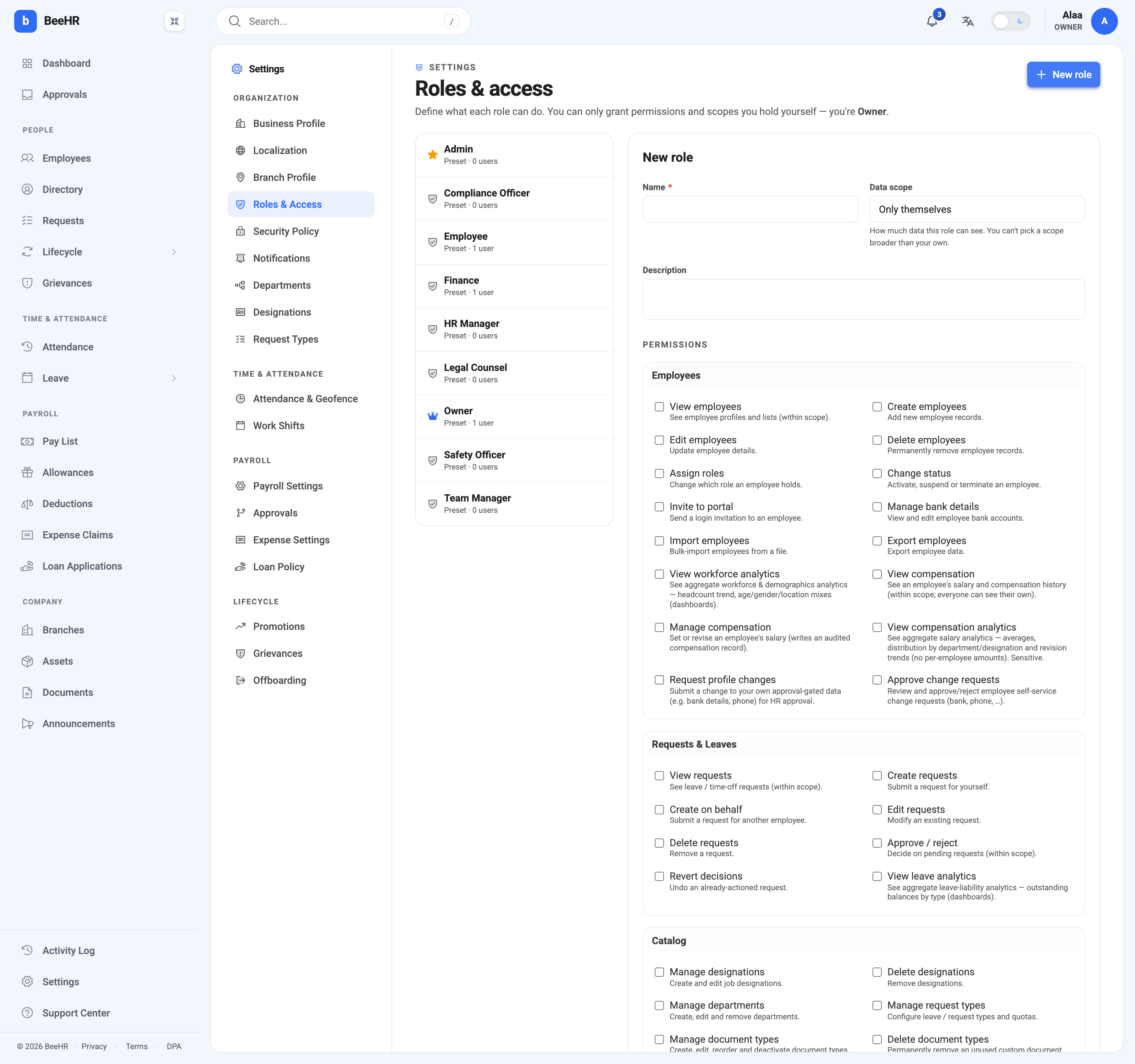
The three fields
Name is required and is what everybody else sees — on the Access tab, in the role list, and in any conversation about why somebody can do something. Name it after the job, not the permissions: Regional Manager ages better than Branch Attendance + Requests.
Data scope defaults to Only themselves, which is the safest possible starting point and almost never what you want. Set it deliberately. It applies to every permission in the role at once, and scopes above your own are disabled — see Roles and Access for what the four scopes mean.
Description is optional and is the field to actually fill in. Six months from now the name tells you what the role is called and the description tells you why it exists. “Ops leads at the Alexandria site — attendance and leave for their own team, no pay data” is thirty seconds now and saves an hour later.
Building the permission set
Everything starts unticked, and the matrix is long — around a hundred permissions grouped by area. Working through it top to bottom is a poor use of an afternoon.
A better approach: open a preset that’s close, note what it has, then build yours to match with the differences applied. The presets are well-shaped, and starting from a known-good set beats assembling one from first principles. There is no duplicate button, so this is manual, but reading one screen and ticking another is still faster and produces fewer surprises.
Two things to watch while you tick:
Read the descriptions, not just the labels. Several pairs look alike and aren’t. View compensation is one person’s salary; View compensation analytics is company-wide aggregates and is marked Sensitive. Manage compensation writes an audited record. The one-line description under each label is the actual contract.
Padlocked rows are permissions you don’t hold. They’re disabled and can’t go into any role you build. If a role genuinely needs one, somebody with that permission has to create the role.
The count above the save button — N permissions selected — is your sanity check. If you meant to build a read-only auditor and it says 60, something got ticked that shouldn’t have.
Editing an existing role
Select any role and change it. Presets are editable too, apart from Owner, so trimming HR Manager to fit your company is legitimate and often better than inventing a parallel role.
Changes apply immediately to everyone holding the role. There is no draft, no staged rollout and no confirmation listing who’s affected. Check the user count beside the role’s name before saving: editing a role held by twelve people is twelve simultaneous access changes.
Somebody whose permissions change while they’re signed in may need to reload before the interface catches up.
Deleting
Delete appears only on roles BeeHR considers deletable — the presets the rest of the product depends on don’t offer it.
Before deleting anything, check what the role list says about how many people hold it. A role at 0 users is safe. Anything else means those people need somewhere else to be first: reassign them, then delete the role.
When not to create a role
Two failure modes are worth naming, because both are common and both are avoidable.
One role per person. If your role list is as long as your staff list, they’ve stopped being roles and become individual configurations with extra steps. The point of a role is that it’s shared — the second person to hold one is what makes it worth having. For a genuine one-off, use a per-person override instead.
A role nobody can explain. A role accumulated over two years of “just tick that too” requests ends up granting things nobody would approve if asked directly. If you can’t say in one sentence what a role is for, that’s the signal to rebuild it rather than extend it — and to write the sentence into the description this time.