
Settings → Security Policy holds four blocks of organization-wide rules. Everything here applies to everyone who signs in, administrators included — there is no exemption list, and no way to hold yourself apart from a rule you’ve just turned on.
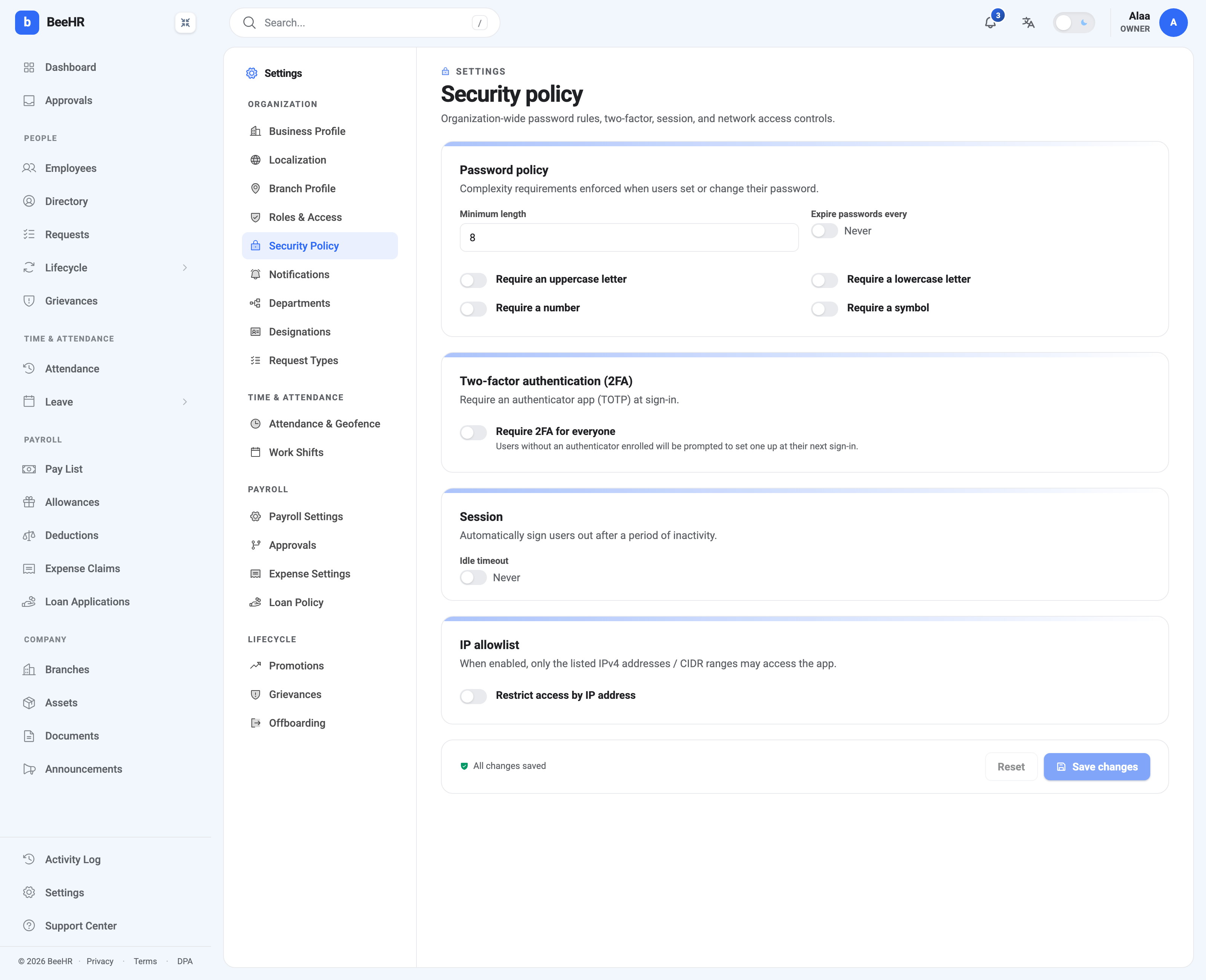
Password policy
Minimum length is the one setting that reliably matters, and the default of 8 is a floor rather than a recommendation.
The four complexity toggles — uppercase, lowercase, number, symbol — are off by
default. Turning all four on produces the familiar P@ssw0rd! pattern, which
satisfies every rule and is a weak password. Current guidance favours length over
character classes; if you only change one thing here, raise the minimum length.
Expire passwords every is off by default, and leaving it off is a defensible choice. Forced rotation tends to produce predictable increments rather than better passwords. Turn it on where a compliance regime requires it, not because it sounds prudent.
Rules apply when somebody sets or changes a password. Tightening them does not invalidate existing passwords — people keep theirs until they next change it.
Two-factor authentication
Require 2FA for everyone is the single highest-value toggle on this screen. It requires an authenticator app (TOTP) at sign-in — Google Authenticator, 1Password, Authy, anything standard.
Anybody without one enrolled is prompted to set it up at their next sign-in, so the rollout is gradual and nobody is locked out. Enrolment itself is covered in Two-Factor Authentication.
Two things to think about before flipping it:
Your workforce needs phones. In a company where a chunk of staff sign in from a shared terminal without a personal device, “everyone” is a real operational constraint rather than a formality.
Enrol yourself first. You’re subject to the rule too.
Session
Idle timeout signs people out automatically after a period of inactivity, and is set to Never by default.
The trade-off is the ordinary one: a shorter timeout limits how long an unattended screen stays open, and annoys people who step away from their desk. Where it earns its keep is shared or public-facing machines — reception, a shop floor terminal — rather than a laptop that locks itself anyway.
IP allowlist
Restrict access by IP address limits sign-in to listed IPv4 addresses or CIDR ranges. Anything not on the list is refused.
This is the most powerful control on the page and the easiest to lock yourself out with. Two cautions:
Add your own current address before enabling it, and be sure the address is actually static. Most office connections are, most home connections are not, and a dynamic address that changes overnight locks out everyone who relied on it.
It blocks the phone app too. Staff clocking in from the employee app are on mobile networks with addresses you can’t enumerate. An allowlist of office ranges and a workforce that clocks in from their phones are incompatible — pick one.
For most companies this stays off, and 2FA does the job it was reached for.
Saving
The footer shows All changes saved until you edit something, then offers Save changes and Reset. Nothing here applies until you save, which is the right moment to re-read the IP list.