
Settings → Localization controls how numbers and dates look for everybody in the organization. Three dropdowns, a live preview, and one distinction that the panel puts in a blue banner because people keep getting it wrong.
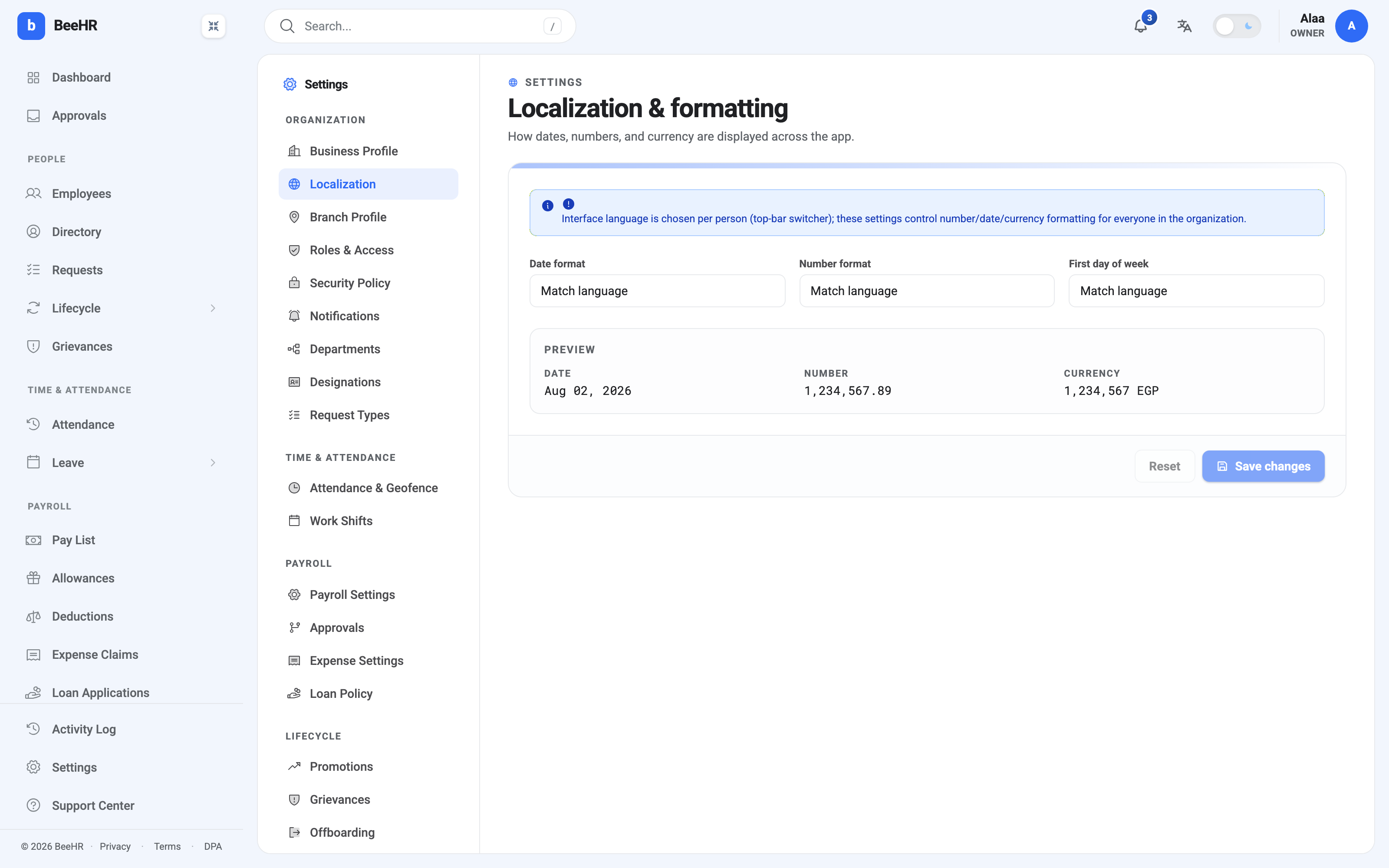
Formatting is company-wide, language is personal
The language switcher in the top bar is not this screen. Each person picks their own interface language — English or Arabic — and it affects nobody else. What you set here is number, date and currency formatting, and it applies to everyone.
So an Arabic-speaking colleague reading the interface in Arabic still sees dates in whatever format this panel specifies. The two are deliberately separate: language is a preference, formatting is a house style that reports and exports need to agree on.
Changing your own language is covered in Switching Language and Theme.
The three settings
Date format decides how every date in the product is written — on records, in tables, and in exports.
Number format is the grouping and decimal convention: whether a thousand is
1,000.00 or 1.000,00.
First day of week decides where calendars and the attendance grid start. In much of the region that’s Sunday rather than Monday, and getting it wrong makes every calendar subtly hard to read.
All three default to Match language, which follows whatever language each person is reading in. That’s a reasonable default and a bad choice for a company that runs bilingually — it means two colleagues looking at the same report see two different date formats. Setting them explicitly is usually worth it.
The Preview block underneath shows a real date, number and currency amount using your current selections, before you save.
Currency isn’t set here
The preview shows currency, which makes this the natural place to look for it, but the base currency field lives on Your Company Profile. This panel only decides how that currency is formatted.
BeeHR has one base currency for the whole account. Salaries, allowances, deductions and pay runs are all in it, and there is no per-branch or per-employee override.
Saving
Save changes applies the panel; Reset puts the fields back to what was last saved, not to defaults.
Changes take effect for everybody, and anyone signed in at the time may need to reload before their screens pick up the new format.