
The Compensation tab on someone’s record answers two questions at once: what they earn now, and how they got there.
The card at the top
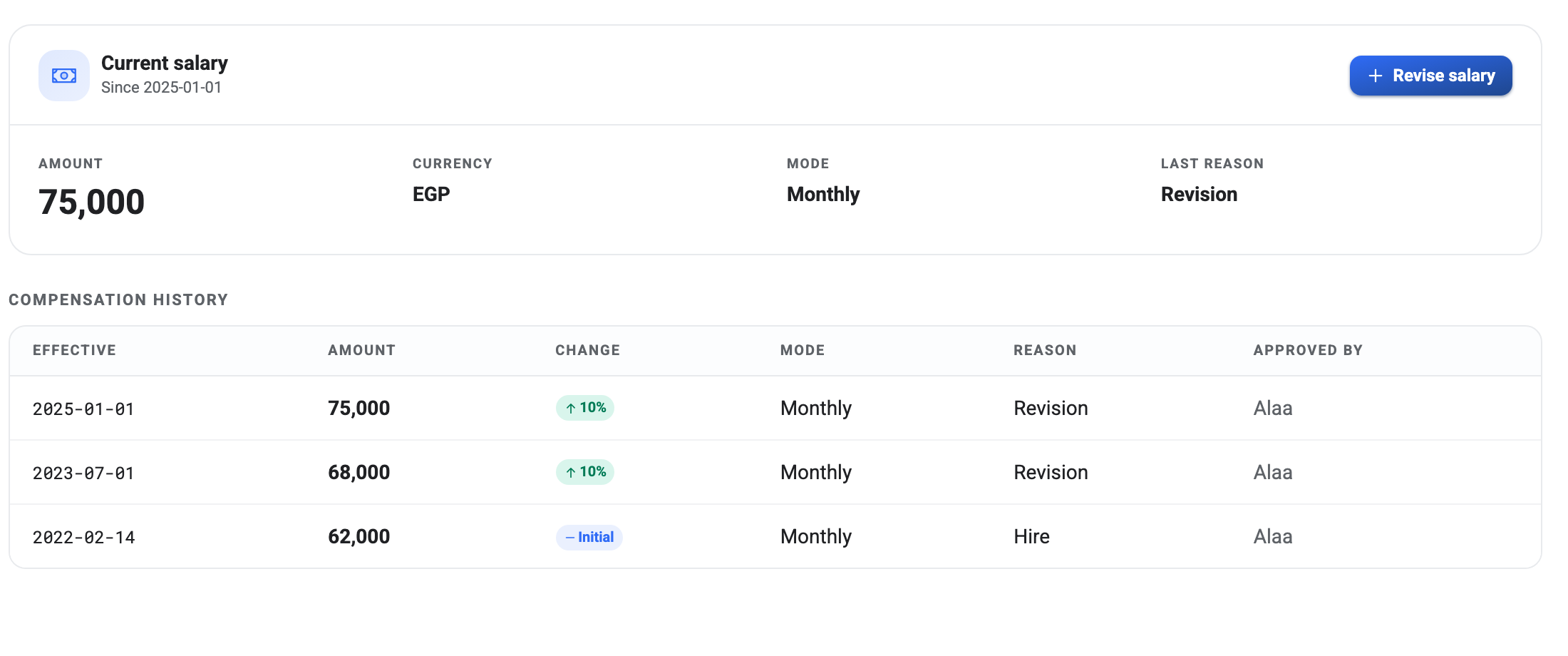
Amount and Currency are what they are paid. Mode is the period that amount covers — Monthly, Weekly, Biweekly or Hourly — and it changes what the number means, not just how it’s labelled: 75,000 Monthly and 75,000 Weekly are very different jobs. Payroll reads the mode when it works out a pay run.
Since is the effective date of the change currently in force, and Last reason is why it happened.
History is append-only
Every line in the table is a permanent record. Nothing here is ever edited or overwritten — a correction is itself a new row. That is what makes this tab worth trusting a year later, and it’s why there is no edit or delete control on any row.
The Change column compares each row against the one below it, so you get the percentage without doing the arithmetic. The oldest row is marked Initial because there’s nothing before it to compare against; that is the salary set when the person was added to BeeHR.
Approved by is whoever was signed in when the change was saved. It isn’t an approval workflow — there’s no request to accept or reject here — it is a record of who did it.
Making a change
Revise salary opens a panel that is more careful than it first looks.
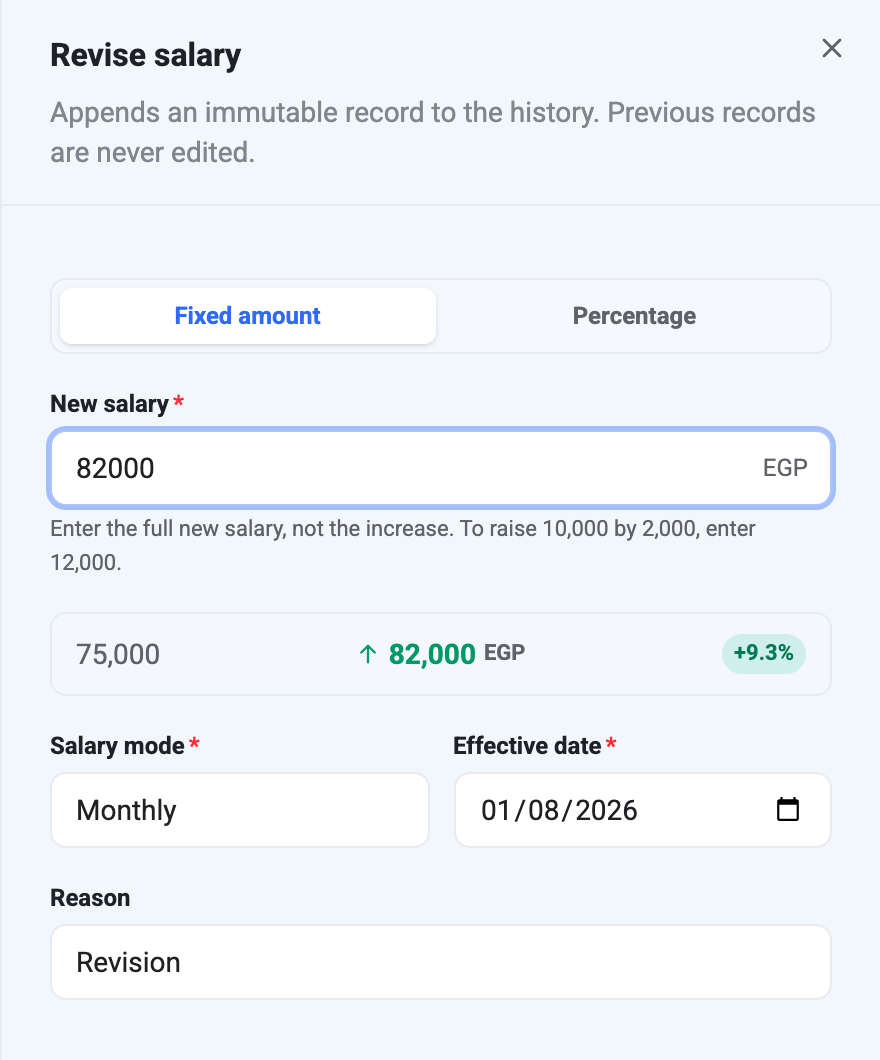
Enter the full new salary, not the increase. The panel says so under the field, and it is the mistake worth guarding against: to raise 10,000 by 2,000 you type 12,000, not 2,000. Type the raise instead of the total and you will quietly cut somebody’s pay.
The preview row underneath catches exactly that. It shows the old figure, the new one and the percentage, live as you type. If you meant a raise and the arrow is pointing down, stop.
The Percentage tab is there for the common case of an across-the-board increase: enter 8 and BeeHR works out the new total for you.
Effective dates decide which pay run picks it up
The Effective date is not cosmetic. It defaults to today, and it determines the point from which the new figure applies — which means you can enter a raise before it takes effect, and payroll will use the old number until the date arrives.
You can backdate too, for a rise agreed in March and entered in May. Do check what has already been paid: entering a backdated raise does not go back and reissue pay runs that have already been completed. Those stay as they were, and the difference is something you settle separately.
Reason
Revision for an ordinary pay change and Correction for fixing a figure that was entered wrongly. The distinction is for whoever reads the history later — a correction says this number was never real, a revision says this number changed.
Other reasons appear in the history but can’t be picked here. Promotion and Demotion rows are written by Promotions when a promotion carrying a pay change is approved, which is how a raise stays tied to the promotion that caused it.
If somebody has no salary yet
The tab shows nothing and payroll has no figure to work with. Initial salary is optional when you add someone, so this is a normal state for a brand-new record rather than an error — Revise salary writes the first record just as well as the add form would have.