
Click anyone in All Employees and you land on their record. It is the deepest screen in BeeHR — everything the product knows about one person, filed behind a strip of tabs.
The header is the same on every tab
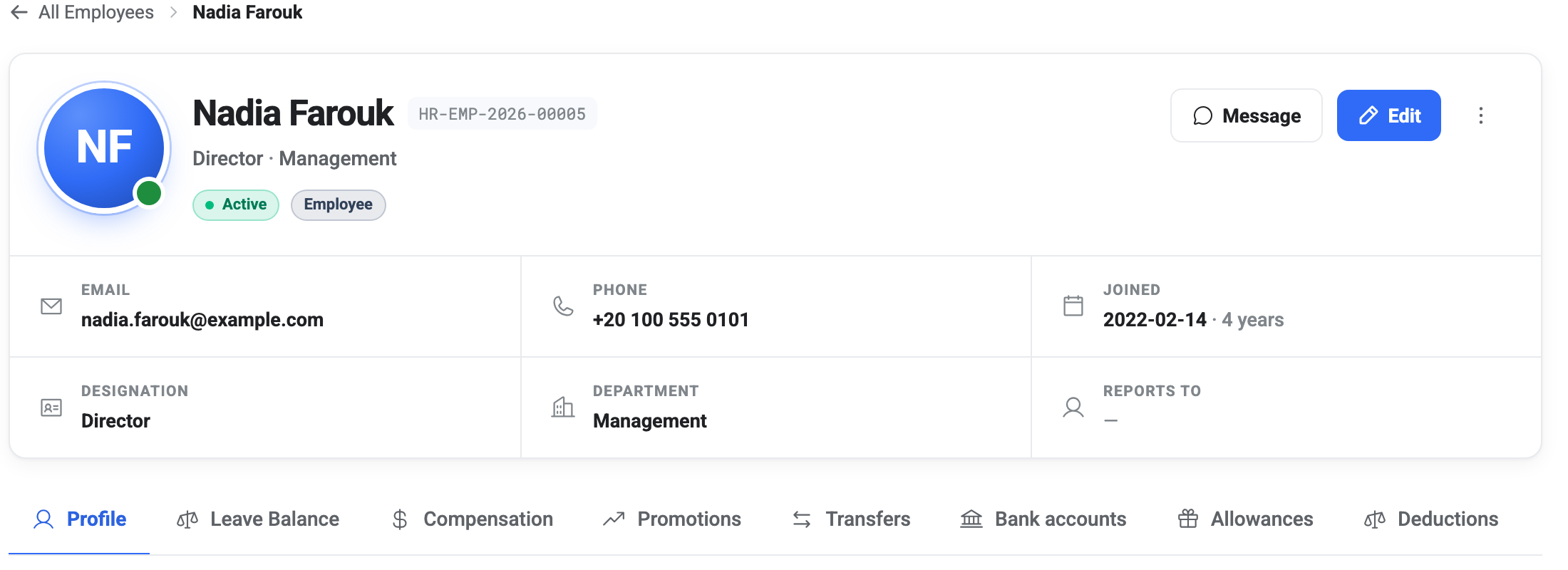
Two things there are worth pointing out.
The date under Joined carries a tenure count next to it — 2022-02-14 · 4 years — worked out from the joining date rather than stored anywhere. It is the quickest answer to “how long have they been here?”, and it is another reason to get the joining date right when you add someone.
The ⋮ button beside Edit holds the same actions as the ⋮ on their row back in the list: change role, change status, invite to app, delete. You don’t have to go back to the list to reach them.
The tab strip scrolls
There are twelve tabs and they do not all fit. On a normal laptop screen the strip ends around Deductions, and the last four are hidden off to the right until you scroll it sideways.

This catches almost everybody once. If a tab this article mentions isn’t on your screen, it is very likely just further along the strip.
What each tab is for
Profile is the personal detail that wouldn’t fit in the header — date of birth with the age worked out, gender, marital status, blood type on the left; address, work location and grade on the right.
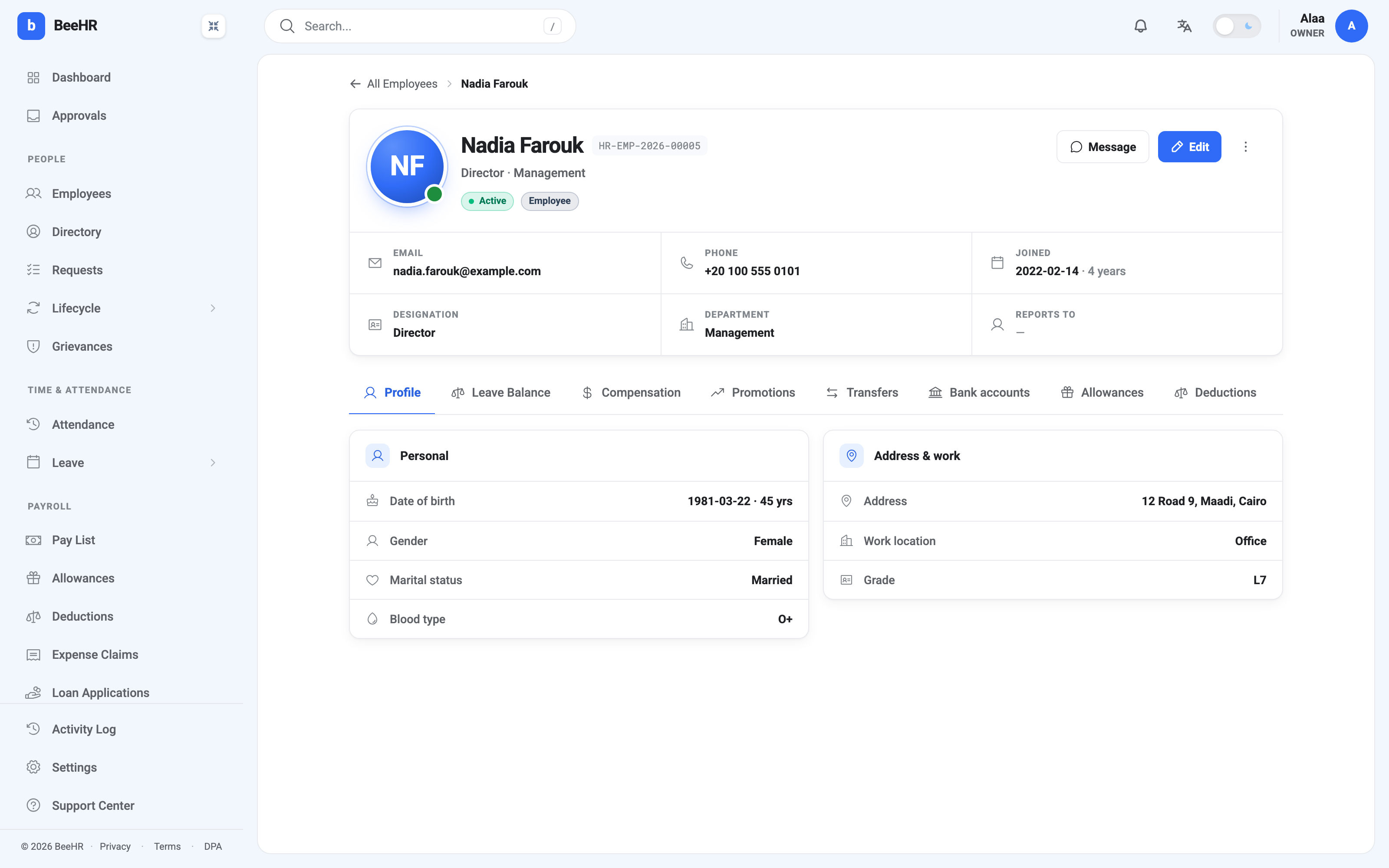
Leave Balance shows one card per leave type, with the quota and how much of it is left. Compensation shows the salary in force now and every change that led to it, with the reason and who approved each one. Promotions and Transfers are that person’s slice of the company-wide lifecycle records.
Bank accounts is where payroll pays them. You can hold up to twenty, and one is marked Primary — that is the one that gets used.
Allowances, Deductions and Pay history are the money tabs: extra payments, money taken off, and the payslip from every pay run they have been included in.
Attendance is this one person’s attendance, month by month, rather than the whole company grid.
The two tabs you might not have
Documents and Access are the only permission-gated tabs on this screen. If you can’t read documents, the Documents tab isn’t rendered at all; the same goes for Access unless you can manage roles. They aren’t greyed out — they are simply absent, which is why two colleagues can look at the same person and count a different number of tabs.
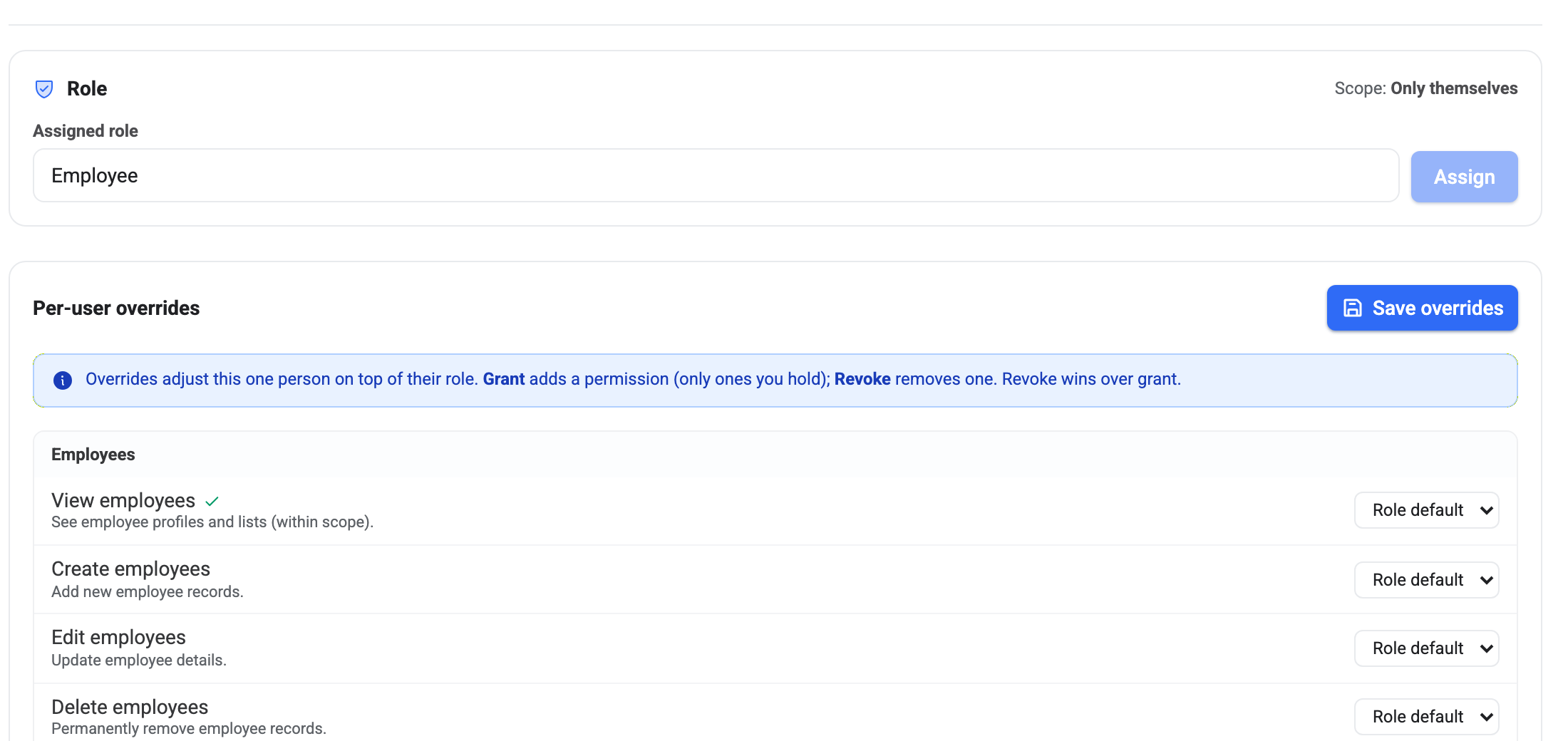
Access is worth knowing about even if you rarely touch it. The role at the top is the broad answer; the overrides underneath adjust that one person on top of it. The rule stated in the blue banner is the important one — revoke wins over grant — and it is covered properly in Employee Access and Permissions.
An empty tab usually means an empty date range
Allowances, Deductions, Pay history and Attendance all show a window of time rather than everything ever recorded. Each opens on a default range — the last twelve months for the money tabs, the last three for attendance — and the message when there’s nothing to show says so: no allowances in this range, not no allowances.
So before concluding that somebody has never been paid an allowance, widen the range with the month pickers at the top of the tab. This is the single most common false alarm on the employee record.
Promotions, Transfers and Bank accounts have no range and say plainly that there is no history, so an empty one there really is empty.
Linking straight to a tab
Adding ?tab= to the address opens the record with that tab already selected —
…/employees/{id}?tab=compensation lands a colleague on the salary history
instead of on the Profile tab. The tab names are the lowercase versions of what
you see on the strip, with payhistory written as one word.
Note that this only works on the way in. Clicking between tabs doesn’t rewrite the address bar, so copying the URL out of it after you’ve clicked around gives you a link back to the Profile tab.