
Photos live on the record itself rather than in a settings screen. Open anyone from All Employees and hover the avatar at the top of their record.
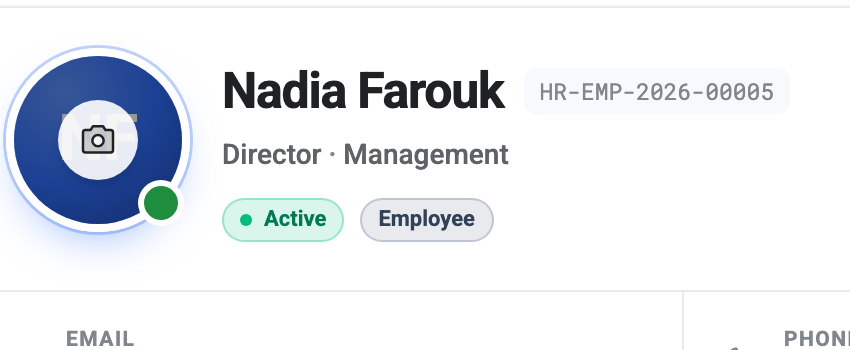
Clicking the camera opens your file picker. You can also drag an image straight onto the avatar, which is usually quicker if the photo is already sitting on your desktop; a ring appears around the circle to show it will accept the drop.
What files work
JPEG, PNG or WebP, up to 10 MB. Anything else is refused immediately with a message rather than failing halfway through the upload.
The image is cropped to a circle and displayed small almost everywhere it appears, so a tight head-and-shoulders shot works far better than a full-length photo. There is no crop tool — BeeHR centres the image and fills the circle, so whatever is in the middle of your file is what people will see.
Replacing and removing
Hovering over an avatar that already has a photo gives you two controls: the camera in the middle to replace it, and a small ✕ in the top corner to take it off. Removing asks you to confirm first, and puts the initials back.
The initials fallback
Anyone without a photo gets a monogram instead — the first letter of their first name and the first letter of their last name, on the same blue gradient for everybody. It is generated on the fly from the name on the record, so it costs nothing, never breaks, and updates by itself if you correct somebody’s spelling.
There is no “default photo” to configure, and no penalty for leaving a record without one. Plenty of companies never upload any.
Who can change a photo
The photo counts as one of the employment fields rather than one of the personal ones, which means employees cannot change their own. Somebody with no permission to manage employees can update their own address or blood type, but the photo is off limits to them — the same list that keeps them from editing their own joining date or manager.
In practice that means photos are something HR sets, usually in a batch when somebody joins. If you would rather staff managed their own, that is a permissions decision — see Employee Access and Permissions.
Where the photo shows up
Once uploaded it replaces the monogram everywhere that person appears: the employees list, their record header, approval queues, attendance rows and the employee phone app. There is nowhere to set a different picture for different places — it is one photo per person.