
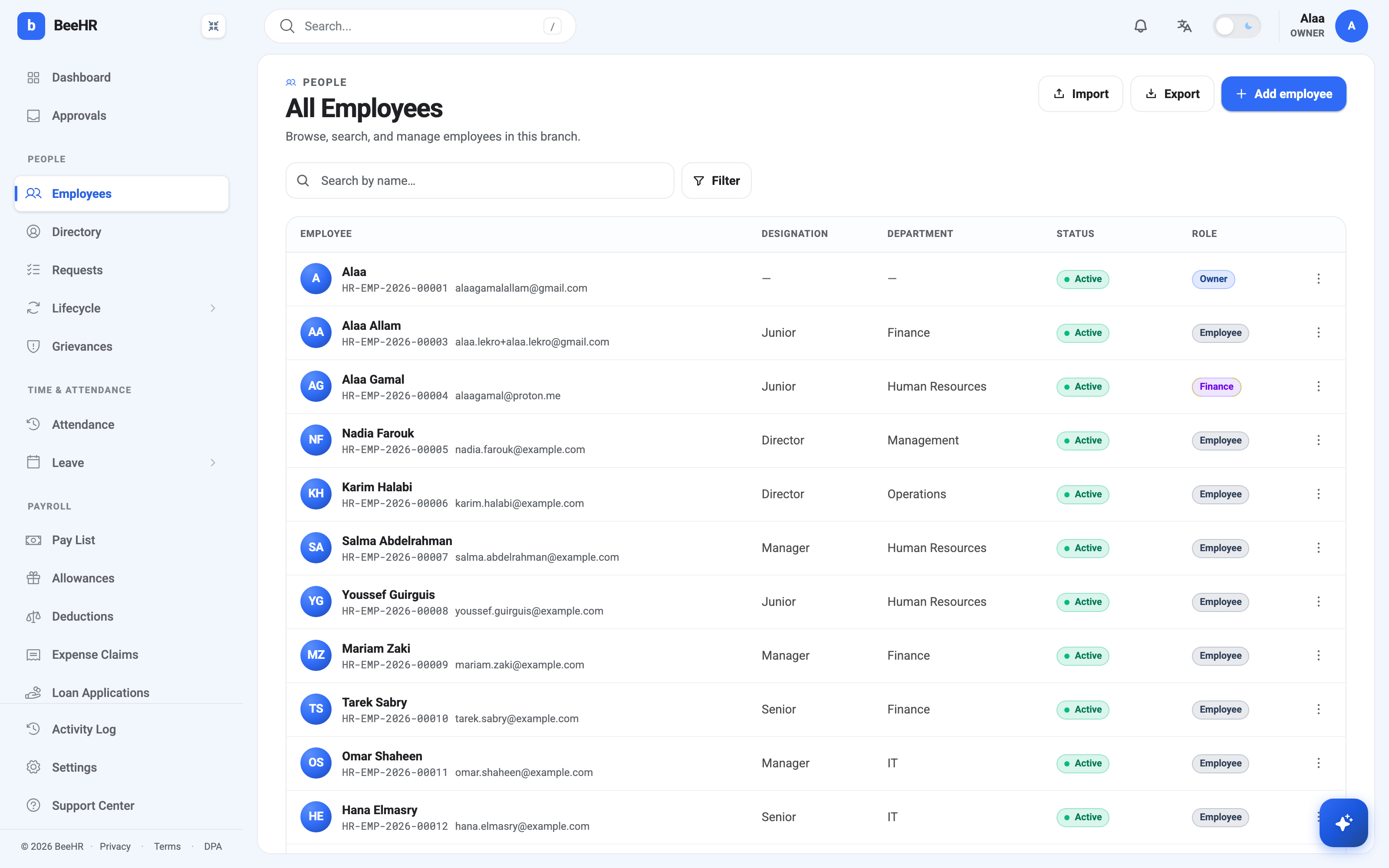
Every person you have ever added to BeeHR lives here, and most of the day-to-day work starts from this page. Open it from People → Employees in the sidebar, or go straight to All Employees.
Reading a row
Each row packs six things into a small space, and two of them get mistaken for each other constantly.
The employee code under the name — HR-EMP-2026-00012 — is generated by
BeeHR when you add someone, and it never changes. Not when they move department,
not when they get promoted, not when they leave. It is the one identifier you
can safely write on a payroll file or a support ticket.
Designation is the job title. Department is the team. Both are picked from lists you control rather than typed in free-hand, which is why you can filter on them reliably — see Designations and Departments if you need to add to those lists.
Then the two that trip people up:
- Status is about employment. Active, Probation, Suspended, Terminated. It answers “is this person working for us right now?”
- Role is about permissions. Owner, Employee, or any custom role you have built. It answers “what are they allowed to see and do in BeeHR?”
They move independently. Somebody on Probation can hold an Admin role; an Active employee can have almost no permissions at all.
If you are trying to stop somebody using BeeHR, Status is the lever — Suspended and Terminated both cut off access outright, checked on every request. Changing their role only narrows what they can see once they are already in. See Changing an Employee’s Status.
Searching
The search box matches on name only, and it searches as you type. It does not
look at email addresses or employee codes, so pasting HR-EMP-2026-00012 in
there will find nothing. Search for the person, not the number.
Filtering
Filter opens a panel with three controls stacked on top of each other.
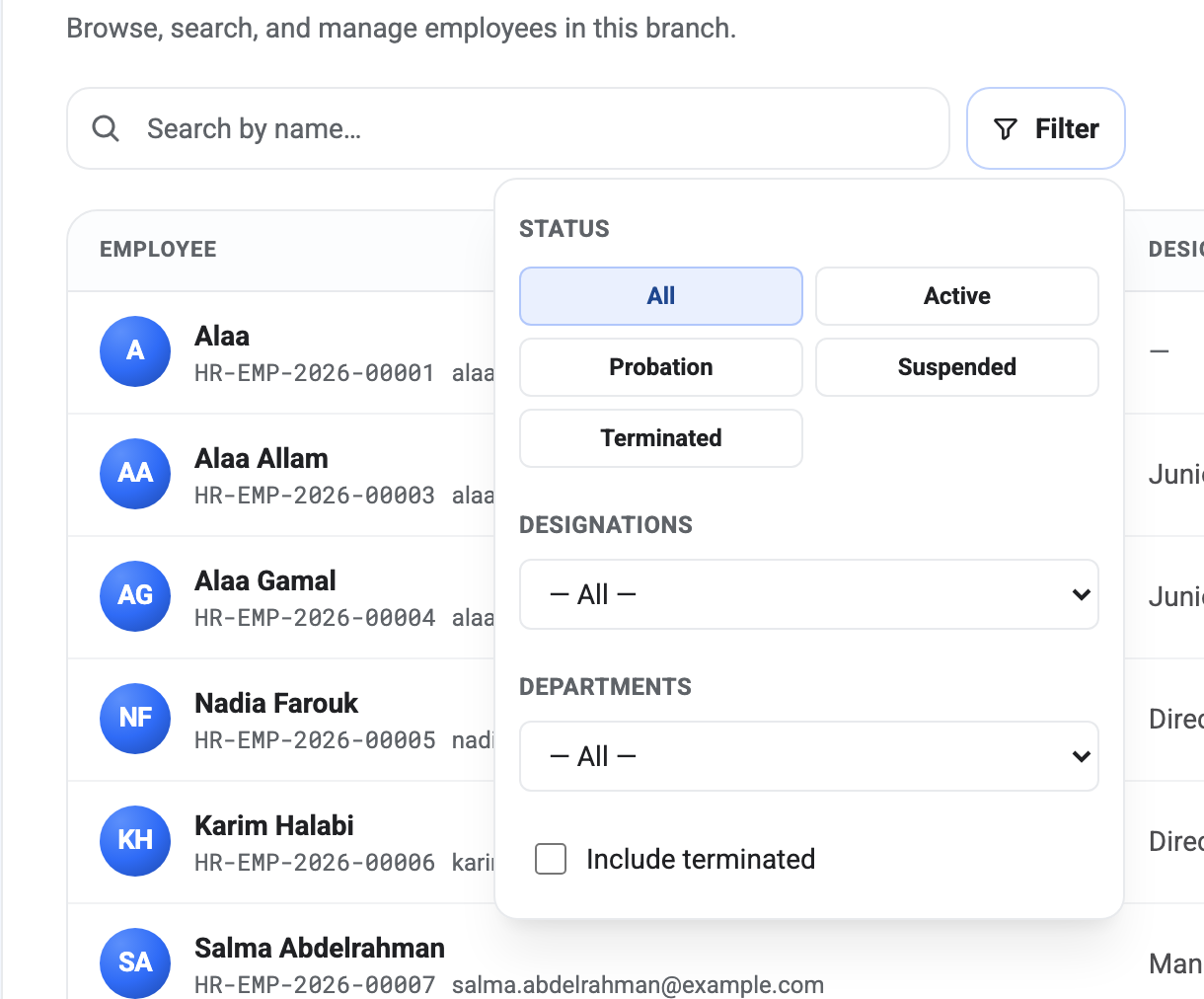
Status, designation and department all narrow the list together, so picking Manager and Finance shows you managers in Finance rather than everyone who is either.
Note — Terminated employees are hidden from this list by default, and the Include terminated checkbox is what brings them back. This catches people out: clicking the Terminated status button on its own returns an empty list, because the page is still filtering them out underneath. Tick Include terminated as well and they appear.
That is worth remembering whenever a filter returns nothing you expected. Nine times out of ten it is a leaver you were looking for.
Acting on one person
Clicking a row opens their full record. If you only need one quick change, the ⋮ menu at the end of the row saves you the trip.
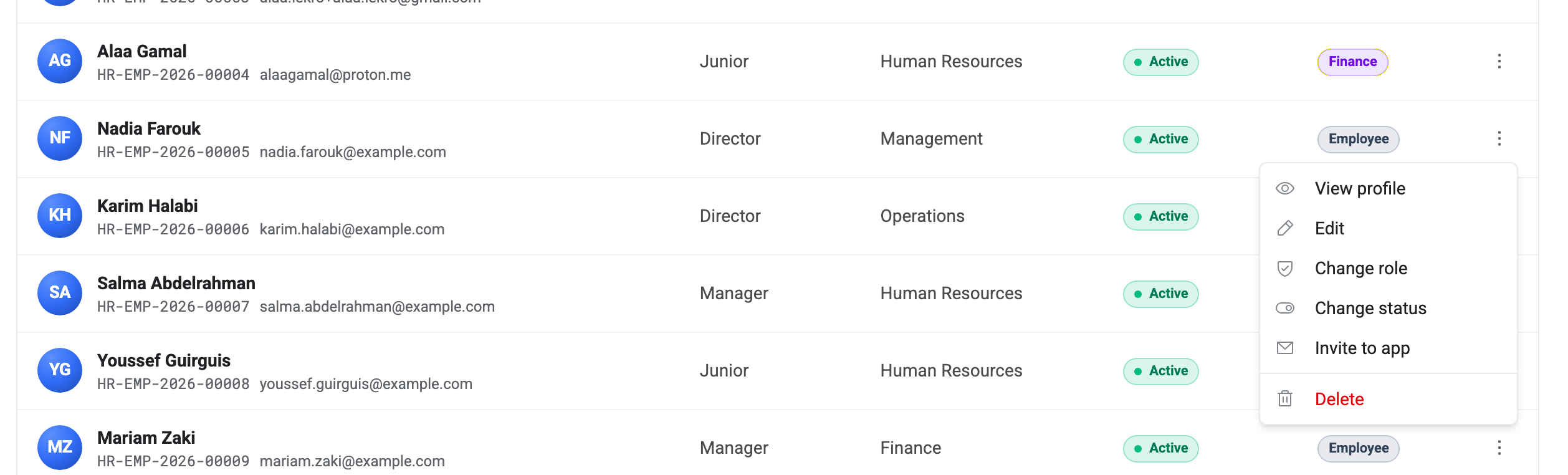
Invite to app is the one people miss. Adding an employee to BeeHR does not give them a login — it creates their record. Until you invite them, they cannot sign in to the phone app or see their own payslips.
Delete is deliberately hard to reach, and it will refuse if the person is attached to anything with history — requests, attendance, a pay run. Almost always the thing you actually want is Change status → Terminated, which keeps the record and its history intact.
Adding people in bulk
Add employee takes one person through a three-step form. For anything more than a handful, Import takes a spreadsheet instead, and Export pulls the current view — filters and all — back out. If you have filtered down to Finance before hitting Export, you get Finance.
A note on branches
The subtitle on this page reads “in this branch”, and it means it. If your company runs more than one branch, this list shows the one you currently have selected in the top bar, not everybody you employ. Switch branches there and the list changes underneath you.