
An allowance is money added to one person’s pay for one month. Transport for somebody who drives to a site, housing under a contract, a bonus for a quarter that went well. It is deliberately a small, disposable record: it belongs to a single month, it doesn’t change anyone’s salary, and it disappears from the arithmetic once that month is over.
Everything lives under Payroll → Allowances, which shows one month at a time.
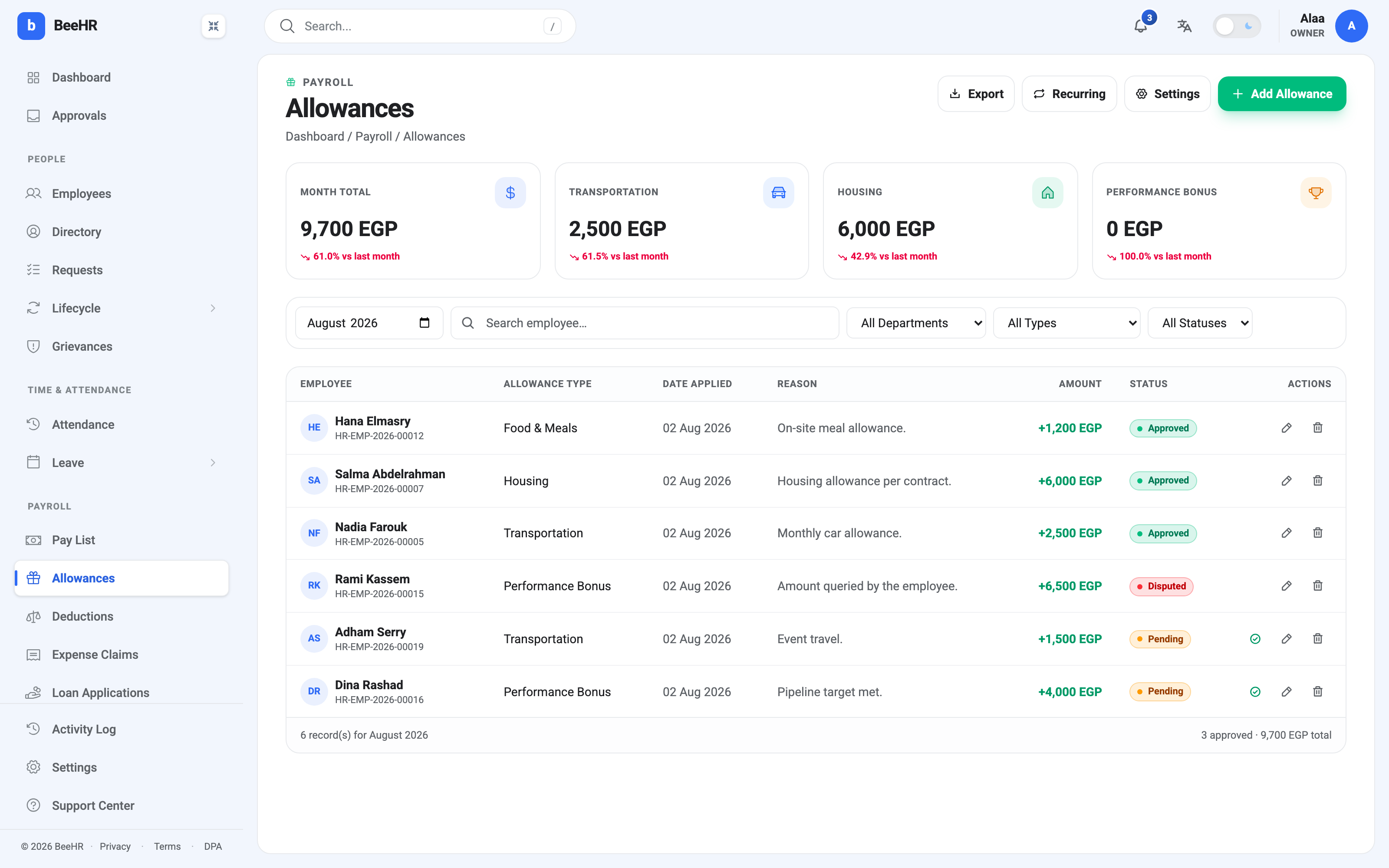
That gap between the table and the tiles is the first thing worth explaining.
The tiles only count approved money
Six rows are on screen and they add up to 21,700 EGP. Month Total reads 9,700. Nothing is broken — the tiles, like payroll itself, count only rows with the status Approved. Adham Serry’s 1,500 and Dina Rashad’s 4,000 are still Pending, and Rami Kassem’s 6,500 is Disputed, so none of the three is real money yet.
The footer under the table says the same thing more plainly: 3 approved · 9,700 EGP total.
The three tiles beside it — Transportation, Housing and Performance Bonus — are fixed. They don’t follow your filters and they don’t change to match whatever you happen to be looking at, so a month with no bonuses reads 0 EGP there even while the table is full of other things. Each carries a comparison against the previous month, which is the quickest way to notice that somebody’s housing allowance quietly stopped.
The four types
The type list is fixed and there is no way to add to it:
| Type | What it’s normally for |
|---|---|
| Transportation | Travel, fuel, a car allowance |
| Housing | Accommodation, usually written into a contract |
| Performance Bonus | One-off rewards |
| Food & Meals | Meal allowances and on-site catering |
The type does no arithmetic — a bonus and a housing allowance of the same amount land on payroll identically. What it does is drive the tiles, the filters and your export, which is enough reason to pick the honest one rather than the nearest one.
Adding an allowance
Add Allowance opens a sheet with five fields, two of which decide more than they look like they do.
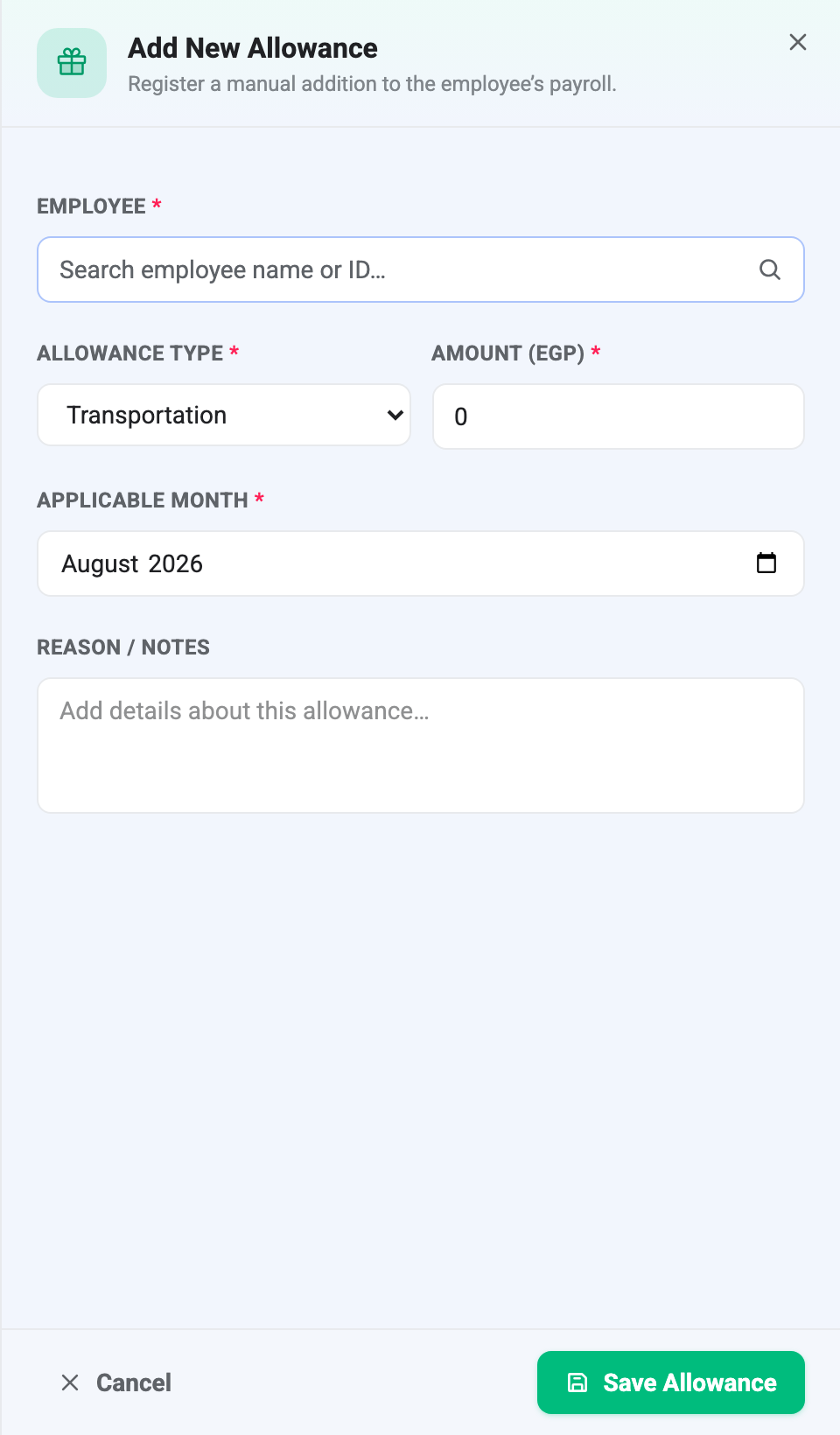
Applicable month is the one that matters. It is not the date you are adding the record — it is the month this money belongs to, and it is the only thing that decides which pay run will pick the allowance up. Adding a July allowance in August is normal and works fine, as long as July’s run hasn’t been generated yet.
Reason / notes is optional, and it is the field people regret leaving empty. It shows in the table, in the export and in the notification the approver receives. “Pipeline target met” answers the question before it is asked; a blank reason means somebody has to come and find you.
Save, and the row lands as Pending. There is no way to create one pre-approved, including for yourself.
Approving
A Pending row gets a green tick in the Actions column. Click it and the row is approved — no dialog, no confirmation, no comment box.
The tick only appears on Pending rows, and only for people who hold the approve allowances permission. Anyone without it still sees the page and can still add allowances; they just can’t be the one who signs them off.
Creating an allowance notifies an approver by email and in the app. Who that is comes from the approval chain in Payroll Settings and Approval Chains — though it is worth knowing now that the chain decides who gets told, not who is allowed. Anyone holding the permission can approve any row, notification or not.
Pending, Approved, Disputed
Three statuses, and the third one surprises people:
Pending — where every new allowance starts. Not counted anywhere.
Approved — counted in the tiles, and eligible for a pay run.
Disputed — the row is contested. Not counted, not paid, not deleted. This is what BeeHR has instead of a “Rejected” status, which is a deliberate choice: a disputed allowance stays visible with its reason attached instead of vanishing.
Approved and Disputed can be flipped back and forth as many times as a disagreement needs, so a wrongly-approved row can be pulled back out of the count and a resolved dispute can be approved after the fact. What you cannot do is send anything back to Pending — once a row has been decided on, it stays decided.
Approved allowances can’t be deleted
The bin icon shows on every row, but on an approved one it fails:
Approved allowances cannot be deleted; dispute them instead.
This is the rule that keeps payroll honest. An approved allowance may already have been paid, and deleting it would leave a payslip that no longer matches anything on record. Marking it Disputed takes it out of the arithmetic while leaving the trail intact, which is what you almost always actually want.
Pending and Disputed rows delete without complaint.
Editing, and one thing to watch
The pencil reopens the row. You can change the type, the amount and the reason. You cannot change the employee or the applicable month — those are what the record is, so a mistake in either means deleting the row and adding it again.
The thing to watch:
Editing an approved allowance does not send it back for approval. Change 2,500 to 25,000 on an approved row and it stays Approved, with the new figure, silently. The change is recorded in the audit log, but nobody is asked about it and no notification goes out.
If a figure changes materially after approval, dispute the row and add a fresh one rather than typing over it.
Once a pay run exists
A pay run is a snapshot. It reads the approved allowances once, at the moment it is generated, and then stops caring.
So an allowance approved after the run was generated is not in it — approving it now changes nothing. In the July run described in How Payroll Works, Yara Bishara’s allowances column reads +0 for exactly this reason: her transport allowance was still Pending when the run was built. Adding, editing or disputing an allowance after the fact never reaches back into a run that already exists. The correction belongs in the next month, or — while the run is still Pending Approval — as a manual override on the pay record itself.
Finding things
The filters narrow the table only; none of them touch the tiles. Month picker, employee search, department, type and status, and they combine — Housing, Approved, Engineering is one click each.
Export takes allowances out as a file and can span several months at once, which is the usual way to answer a question about what somebody has been paid on top of salary over a year.
Somebody who receives the same allowance every month shouldn’t be typed in twelve times — that’s what Recurring Allowances are for. Money going the other way is Deductions, which works the same way in reverse.