
Two screens sit behind payroll, and they answer two different questions. One sets the rules that apply to everybody’s pay. The other decides who gets told when something needs a decision.
Tax and insurance
Settings → Payroll Settings holds two rules, and they apply to every person in every run. There are no per-employee tax codes and no brackets.
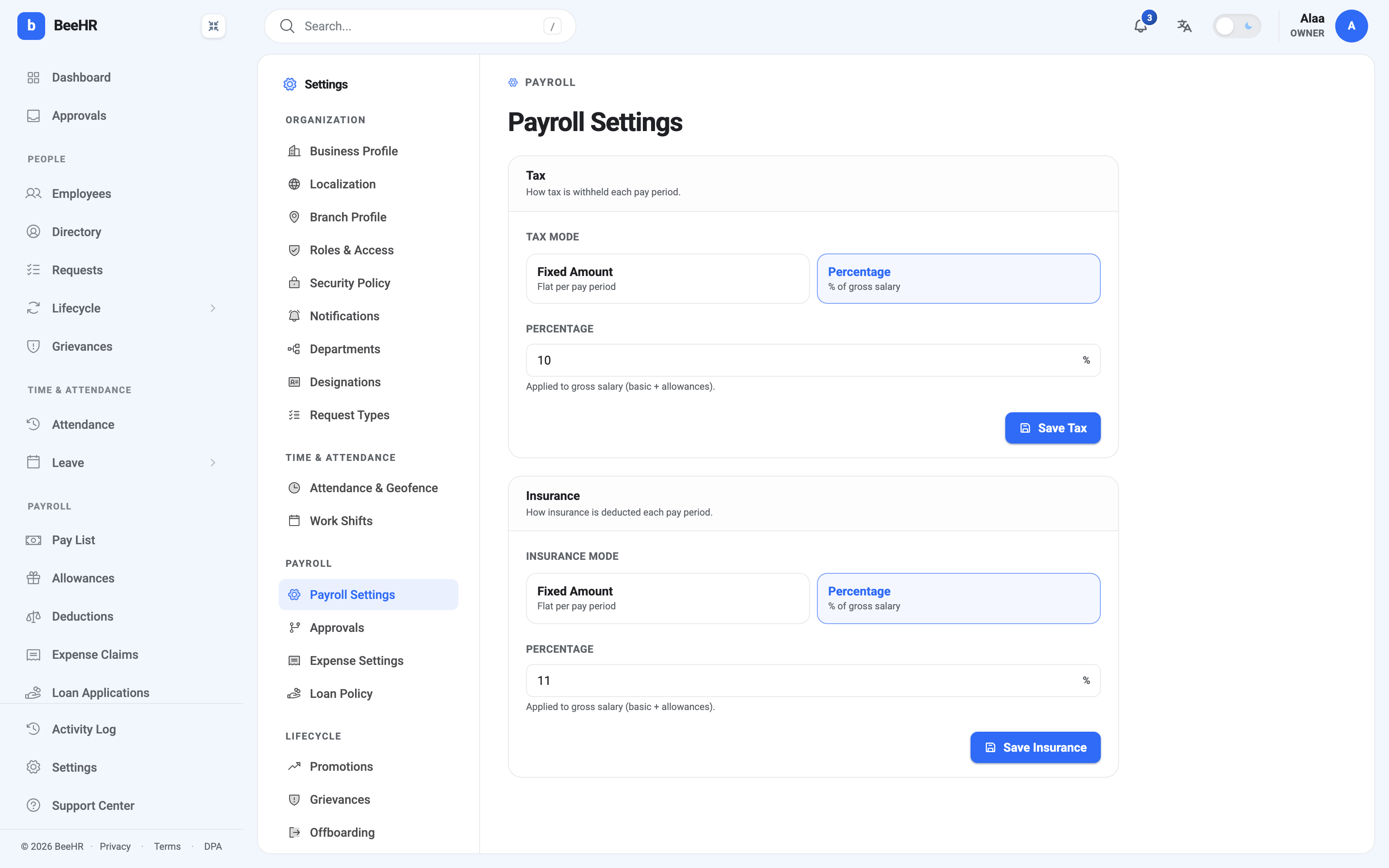
Each can be a fixed amount — a flat figure withheld every pay period, regardless of what anyone earns — or a percentage. Percentage is the usual choice; fixed is there for jurisdictions or arrangements where a flat levy is the rule.
The two cards save independently. Changing tax and pressing Save Tax leaves insurance untouched, which is worth knowing if you’re expecting one save button for the page.
What the caption gets wrong
Both fields are captioned “Applied to gross salary (basic + allowances)”. That is very nearly right, and it is worth knowing where it isn’t.
Tax and insurance are calculated on the taxable part of gross, which excludes allowances marked as non-taxable — in practice, expense reimbursements paid through payroll. Reimbursed money is being given back rather than earned, so it raises gross and net but is left out of the base the percentages bite on.
For an ordinary month there is no difference at all, because ordinary allowances — transport, housing, bonuses, meals — are all taxable. The caption only overstates the base in a month where somebody was reimbursed through payroll. The arithmetic is right; the label is optimistic. How Payroll Works sets out the full calculation.
Changes don’t reach backwards
A pay run records the tax and insurance rules it was built with. Raising tax from 10% to 12% today changes runs generated from now on and leaves every existing run exactly as it was, including ones still sitting at Pending Approval.
To apply a new rate to a month that’s already been generated, cancel the run and generate it again. Once a run is Paid, that door is closed and the difference is settled in a later month.
The daily-rate divisor
Payroll carries one more setting that this screen doesn’t show: the divisor used to turn a monthly salary into a daily rate when absences are converted into deductions. It defaults to 30 and there is no field for it here — it is set through the API or left at its default. It matters only for Automatic Absence Deductions, where its effect is explained.
Approval chains
Settings → Approvals is where you say who should hear about a payroll request.
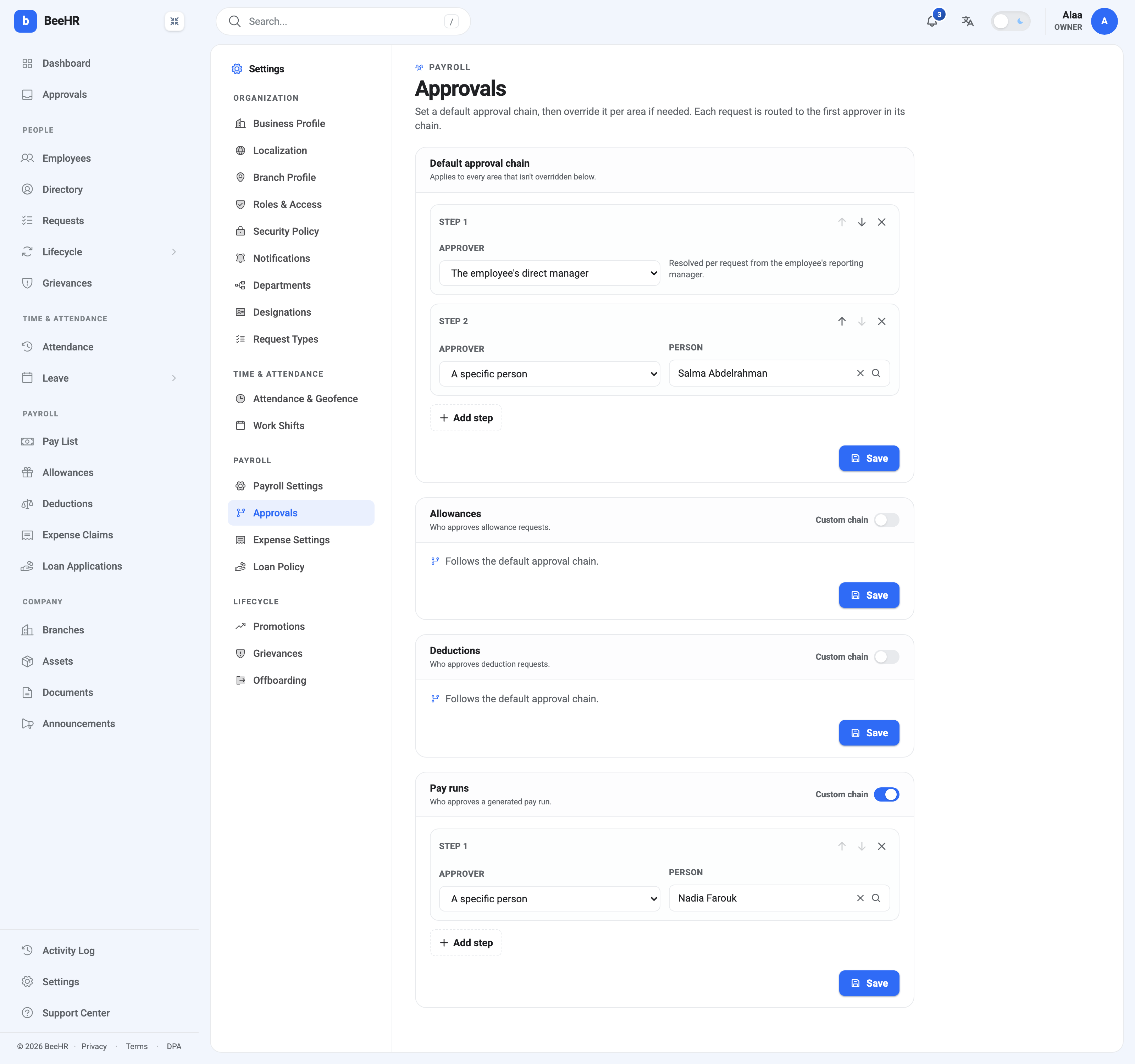
Set a default chain once, then override it per area if an area needs something different. Three areas can be overridden: Allowances, Deductions and Pay runs. An area with its Custom chain toggle off says so plainly — Follows the default approval chain — and follows whatever the default becomes later.
Each step names an approver one of two ways:
The employee’s direct manager is relative. It resolves per request against the reporting manager on the employee’s own record, so one step covers an entire company and keeps working as people move between teams. If somebody has no reporting manager set, the step resolves to nobody and is skipped.
A specific person is absolute — always that individual, whoever the request is about. Useful as a backstop, and the only sensible choice for pay runs, where the “employee” the request is about isn’t really a person at all.
Steps can be reordered with the arrows or removed with the ×, and a chain must have at least one step with a real person in it before it will save.
What a chain actually does
This is the part to read twice, because the screen’s own wording oversells it. The page says each request is “routed to the first approver in its chain”, and the Pay runs card is captioned “Who approves a generated pay run”.
A chain decides who is notified. It does not decide who is allowed.
When an allowance, a deduction or a pay run is created, BeeHR resolves the chain, takes the first step, and sends that person a notification and an email. That is the whole of its effect.
Two consequences follow, and both matter:
Anybody with the permission can approve, chain or no chain. The Approve button is gated on a permission — approve allowances, approve deductions, approve pay runs — and on nothing else. Somebody who holds it can approve a row they were never notified about. Nobody is blocked from approving because they aren’t in the chain, and nobody is forced to wait their turn.
Only the first step is ever contacted. The default chain in the screenshot above has two steps, and Salma Abdelrahman — step 2 — is not notified about anything. She is not a second signature, and no request waits for her. Extra steps are recorded and ready for a future version, but today they are documentation of an intent rather than a working sequence.
So if the rule you actually need is two people must sign this off, this screen will not enforce it. What it will do is make sure the right person finds out promptly, which is most of the value on a small team. The enforcement lever is permissions: to stop someone approving, don’t give them the permission. See Employee Access and Permissions and Roles and Access: How Permissions Work.
Setting it up sensibly
For most companies the default chain is one step — the employee’s direct manager — and no overrides at all. Allowances and deductions are raised about a person, their manager is the right person to hear about it, and the relative step means you never revisit this screen when somebody changes team.
Pay runs are the exception, and should almost always be overridden. A run isn’t about one employee, so “the employee’s direct manager” has nothing sensible to resolve against. Point it at the specific person who owns payroll — Nadia Farouk in the screenshot — so the notification lands somewhere useful instead of nowhere.
Beyond that, override an area only when a genuinely different person should hear about it: a finance lead who wants to see every deduction, say, while allowances stay with line managers.