
A generated run sits at Pending Approval and does nothing until somebody acts on it. That pause is the review window, and it is the only point where the numbers can still be changed.
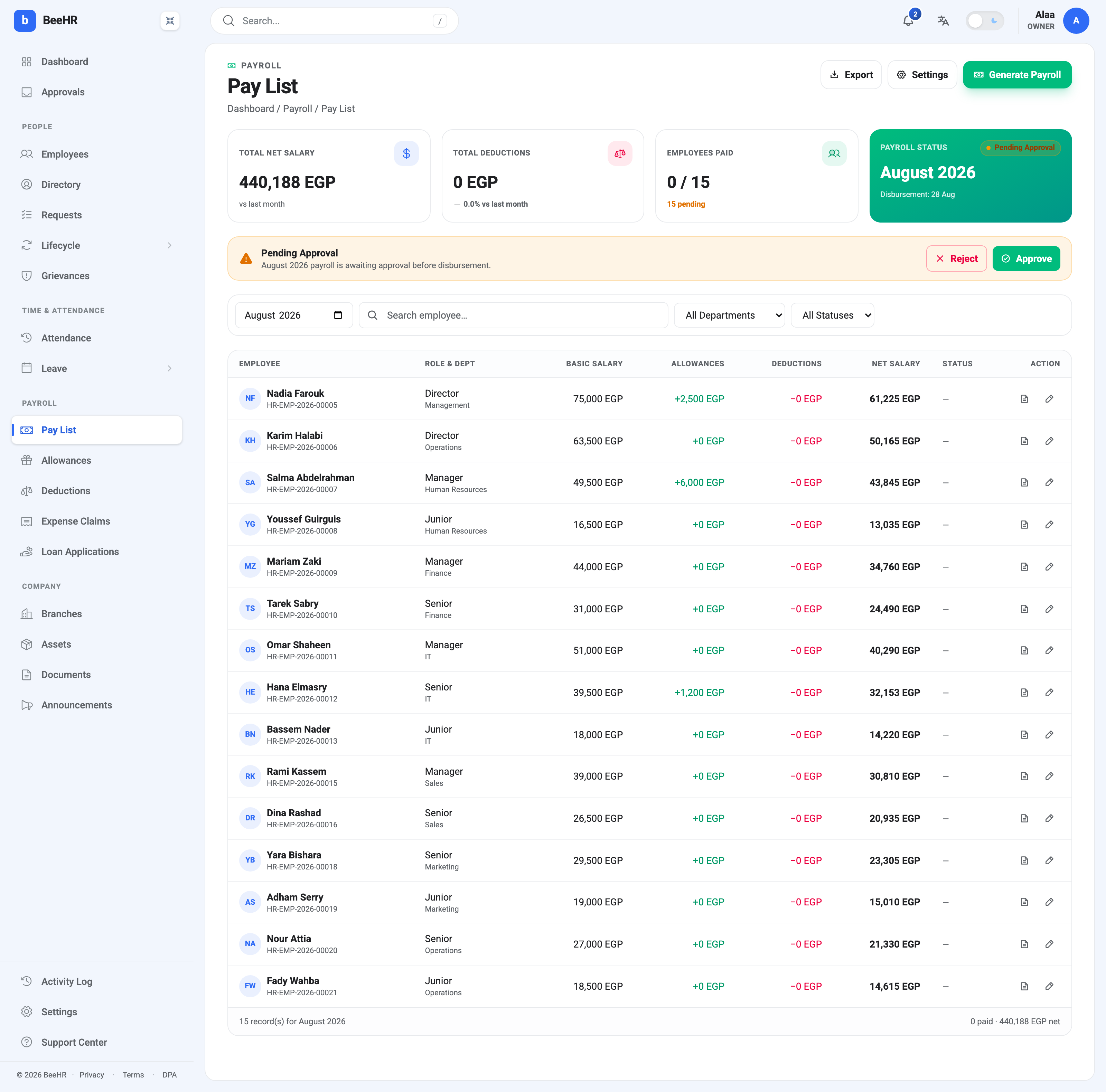
Two things on this screen are worth noticing before you start.
The Status column is a row of dashes. Records don’t get a status until the run is approved, so an empty column here is normal rather than a sign that something failed.
Employees paid reads 0 / 15 with 15 pending underneath. The 15 is the number of people in the run; the 0 is how many have been paid, which is none, because nothing has been.
Checking the run
The filters above the table are for finding rows, not for changing the run. Search by name, narrow to a department, or use the month picker to compare against a month you have already paid. Nothing you do here alters anything.
Export takes the whole pay list out as a file, which is the practical way to check totals against whatever your finance side expects, or to hand a bank a list of payments.
The two icons at the end of each row are Payslip, which downloads that one person’s payslip as a PDF, and Edit.
Editing one person’s pay
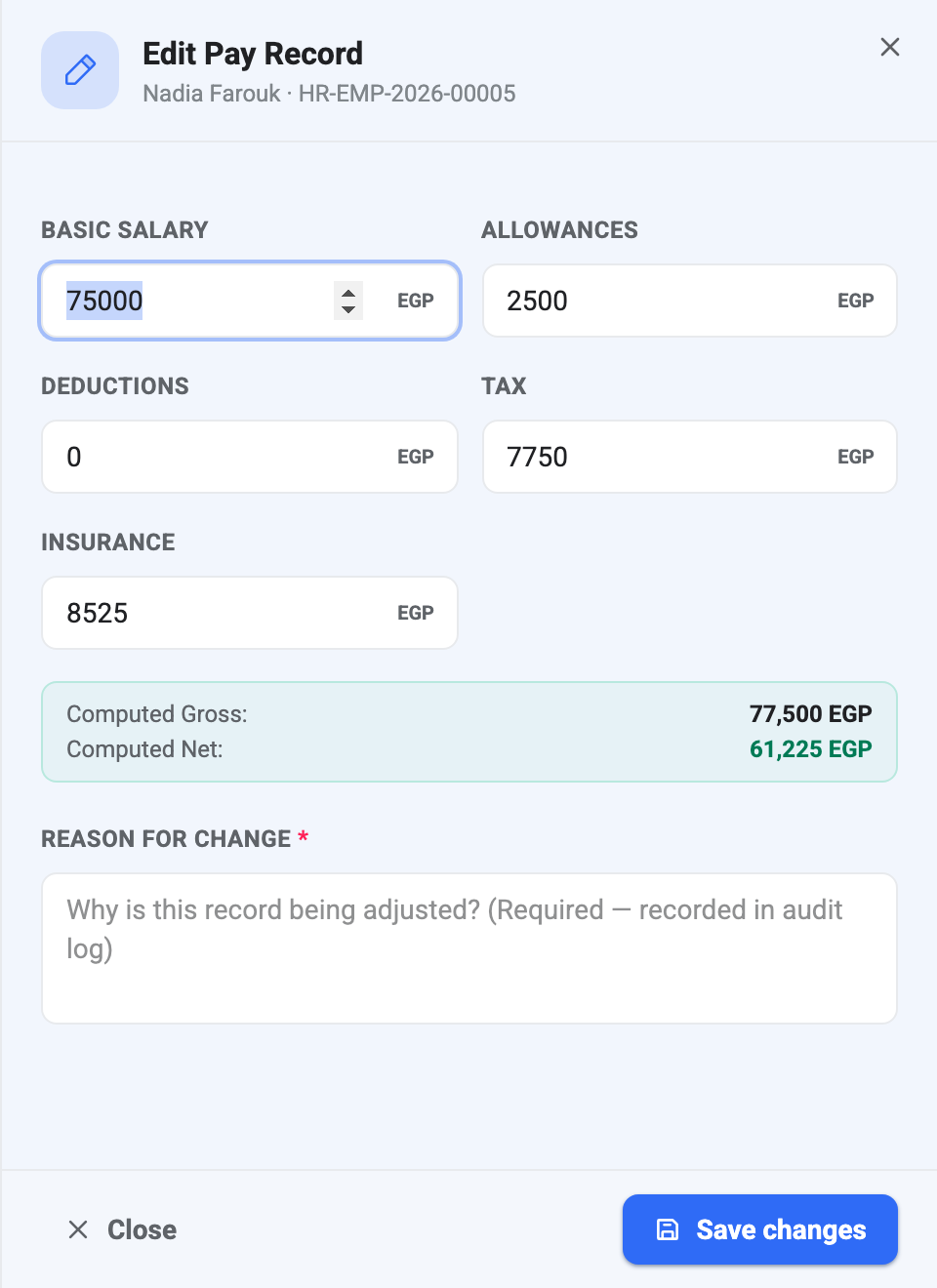
The pencil opens the record for one person. Five figures can be overridden: Basic Salary, Allowances, Deductions, Tax and Insurance.
This is a manual override, not a recalculation. BeeHR worked these figures out when the run was generated; typing over one of them replaces it and does not go back to the source. Correcting an allowance here does not create an allowance row, and correcting a salary here does not change the employee’s compensation record — next month’s run will use the original figures again. If the underlying data is wrong, fix it at the source and let the following month pick it up.
Computed Gross and Computed Net update live as you type, and they are the only two things recalculated. That matters more than it sounds:
Tax and insurance do not follow your edit. Add 2,500 to somebody’s allowances and Gross rises by 2,500, but the Tax and Insurance fields keep the figures they already held. If the override should be taxed, work the new amounts out and type those in too.
Reason for change is required. An edit will not save without it, and the text is kept — it is not a formality you can dash off, because it is what the next person reads when they ask why a number doesn’t match.
Values have to be zero or positive. Net is floored at zero, so a record can’t go negative however large the deductions.
Editing also moves the totals at the top of the page: the run’s gross, deductions, tax, insurance and net all shift by the difference you just made.
Every edit is kept
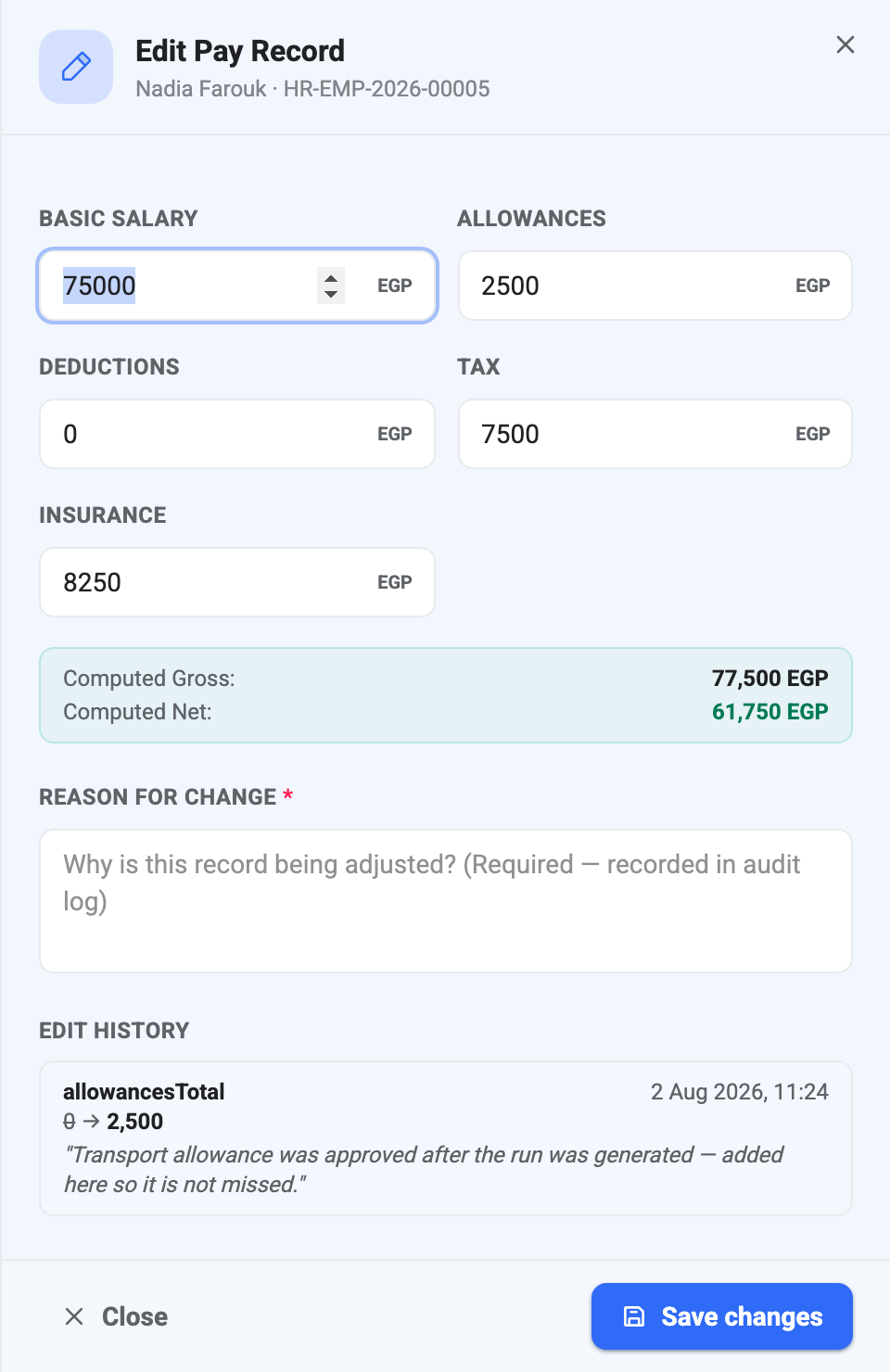
Once a record has been edited, an Edit History section appears at the bottom of the sheet listing every change: which field, the old value struck through, the new one, the timestamp, and the reason you gave.
The list is append-only. There is no undo and no delete — putting a figure back is itself a second entry. That is the point: a pay record that was changed after generation should say so forever.
Saving without changing anything records nothing, so you can open a record, look at it, and close it again without leaving a mark.
The example above is the common case for an override. An allowance was approved after the run had already been generated, so the run never saw it. Rather than cancel and regenerate the whole month for one person, the figure goes on the record by hand and the reason explains itself.
The window closes at approval
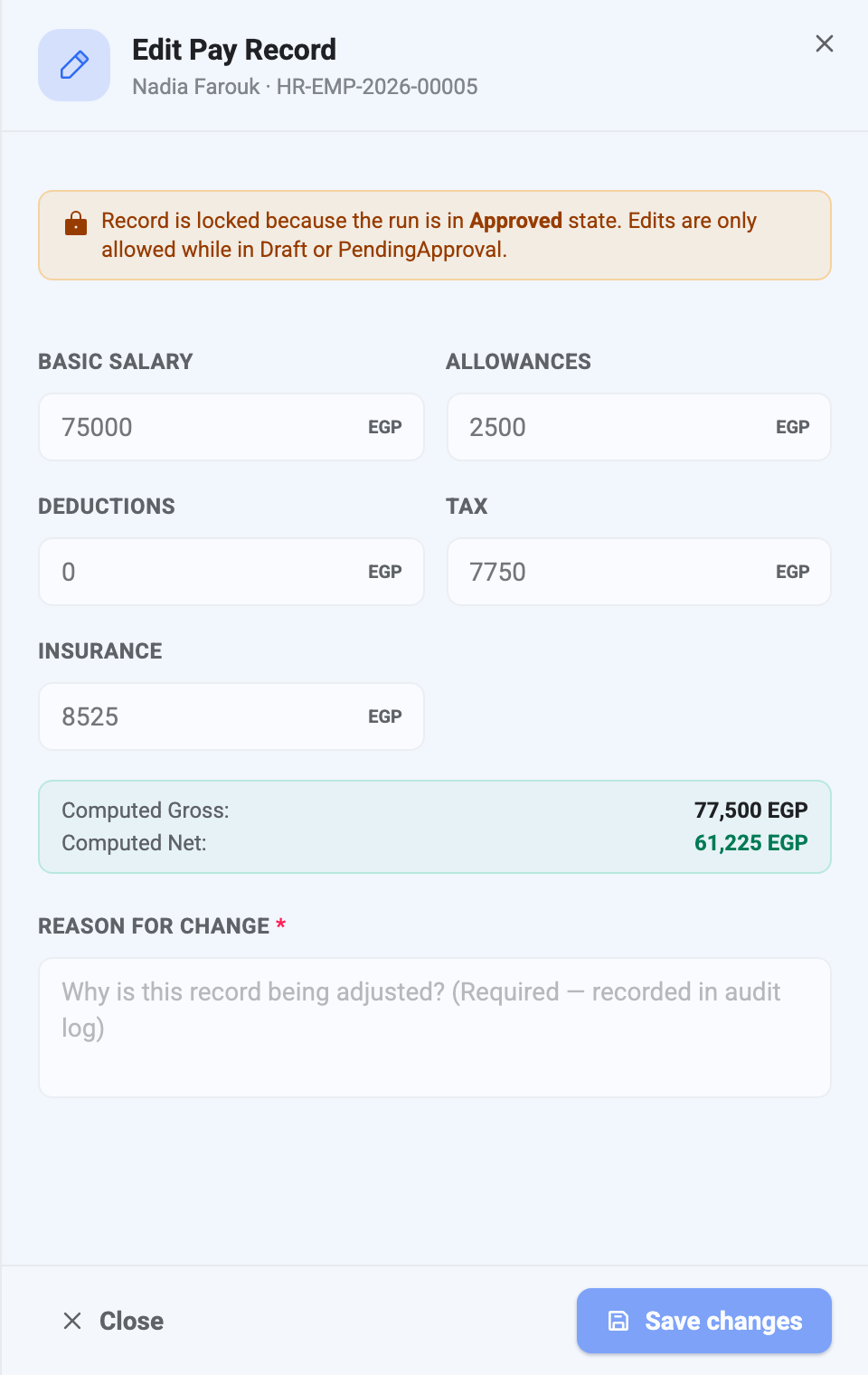
Records can only be edited while the run is at Draft or Pending Approval. The moment it is approved, every field greys out and this notice takes their place. The restriction is enforced by BeeHR itself, not just hidden in the interface, so there is no way around it.
This is why the review window matters. Once a run is approved the only routes left are to cancel it and generate the month again, or — if it has been paid — to settle the difference in the following month. Both are more work than checking now.
What happens after the review is Approving and Paying a Pay Run.