
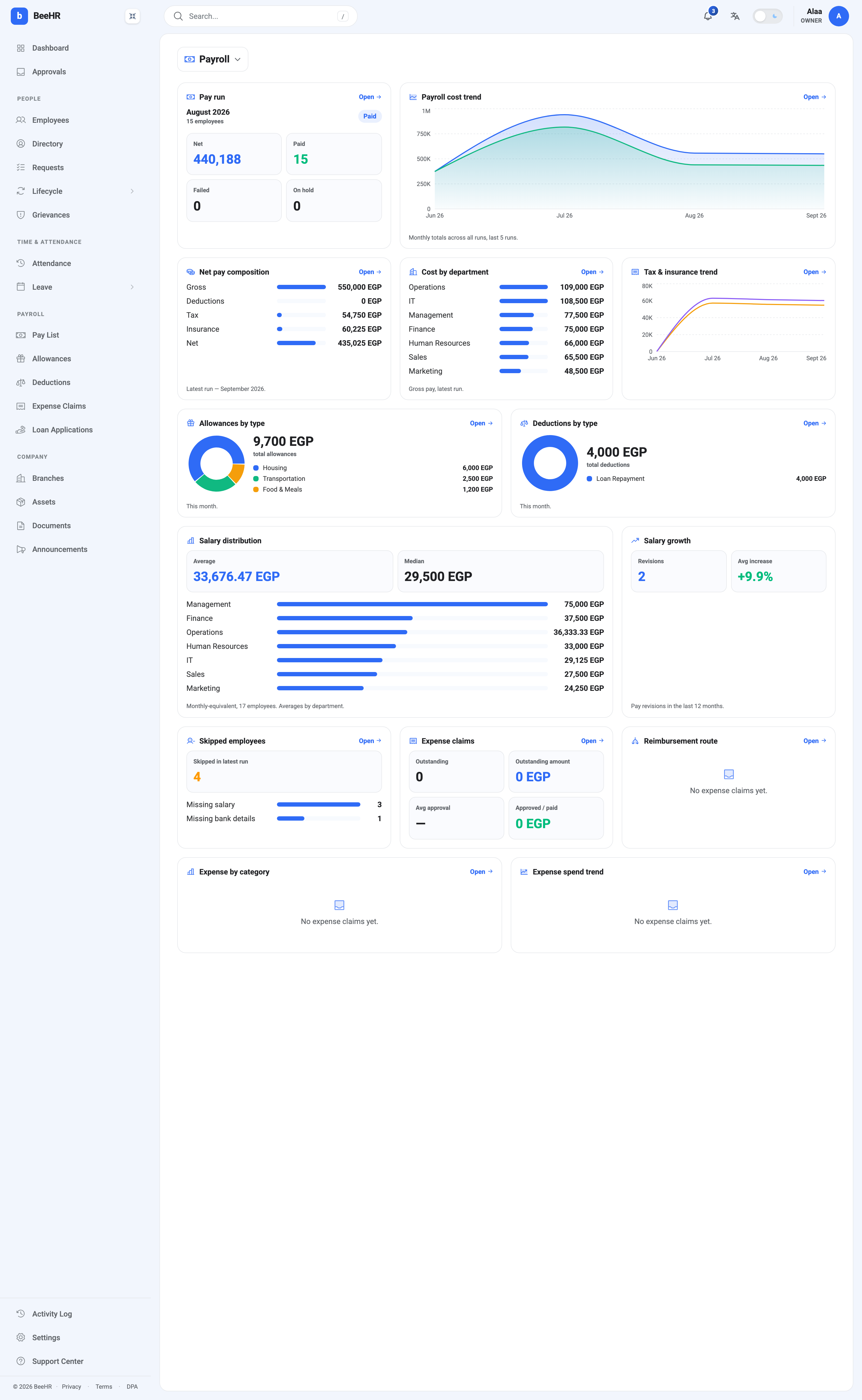
The Payroll dashboard is the widest view of what the company spends on people. Fourteen widgets, in four groups: the current run, cost over time, salaries, and expenses.
Two different “latest” months
The widgets don’t all describe the same month, and the captions are what tell you which is which. This trips people up more than anything else here.
Pay run reads the calendar month — August 2026, the month it happens to be. Not the last run you generated. A month you haven’t run yet shows as empty here even if last month went perfectly.
Net pay composition and Cost by department read the latest run that exists, whichever month that is. The caption says so: Latest run — September 2026.
So on this screen the top-left card is describing August and the two cards below it are describing September. Both are right. Neither is wrong. But reading the 550,000 gross as August’s figure would be a mistake, and nothing but that small grey caption stops you.
“Latest” includes cancelled runs. The September run in the shot above was cancelled — it was never approved and nobody was paid from it — and its figures are what Net pay composition and Cost by department are showing. A cancelled run is still the most recent run in the account.
Before quoting a figure from either card, check the caption for the month and then check that month’s status on the Pay List. If the latest run was cancelled, these two cards are describing money that never moved.
Cost over time
Payroll cost trend plots monthly totals across the last five runs. It’s the card to look at when somebody asks whether the wage bill is growing, and it’s honest about gaps — a month with no run simply isn’t in the series.
Tax & insurance trend does the same for the two statutory lines. A step in this chart with no matching step in the cost trend means the rates changed rather than the headcount — the settings behind that are in Payroll Settings and Approval Chains.
Allowances by type and Deductions by type are both captioned This month, so unlike the composition cards they follow the calendar. They break down into the same fixed type lists used by Allowances and Deductions, and they count approved rows only — a month with six allowances on record and three approved shows only the three here.
Salaries
Salary distribution gives an average, a median, and a bar per department, and its footnote does real work: monthly-equivalent, 17 employees. Seventeen, not twenty — people without a compensation record can’t be averaged and are left out. The gap between average (33,676) and median (29,500) is the usual signal that a few senior salaries are pulling the mean upward.
Salary growth counts pay revisions in the last twelve months and their average increase. It reads raises, not headcount changes, so hiring someone expensive doesn’t move it. See Compensation: Salary and Its History.
Skipped employees
The most actionable card on the dashboard, and the one worth checking before every run rather than after.
It counts who was left out of the latest run and why — 4 skipped, of which 3 had no salary on record and 1 had no bank details. Those are silent exclusions: nobody errored, nobody was told, and the run completed normally without them.
Both causes are fixable in a couple of minutes on the employee record, and both are covered in How Payroll Works. What makes this card valuable is that it turns “the total looks a bit low” into a list of names.
The expense group
Four widgets — Expense claims, Reimbursement route, Expense by category and Expense spend trend — read the expense-claims module, and all four say No expense claims yet until somebody files one.
Empty here means nothing has been claimed, not that anything is misconfigured. They fill in on their own once the module is used; see How Expense Claims Work.
What it can’t do
There are no filters and no date range. Every figure is either “this month” or “the latest run”, for the whole organization within your data scope. To slice payroll by department or period, export from the Pay List instead — the Export button there takes several months at once.
Open → on any card goes to the records behind it.